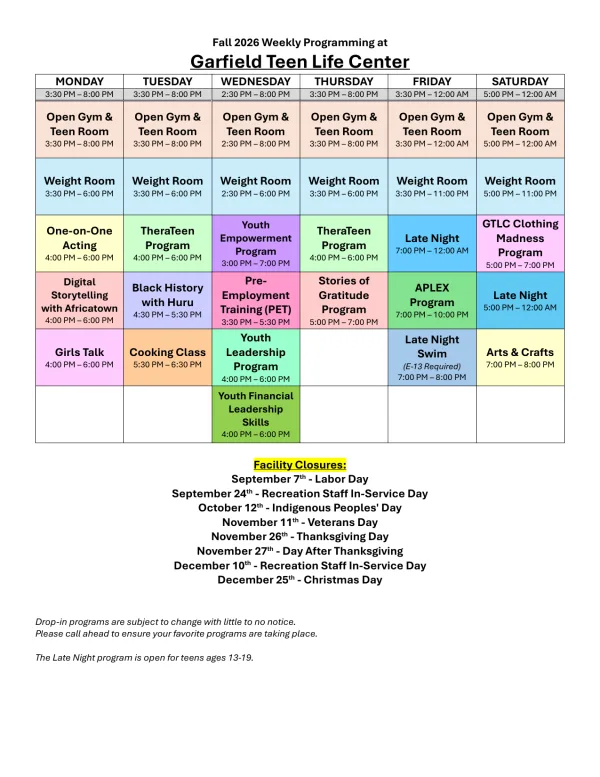
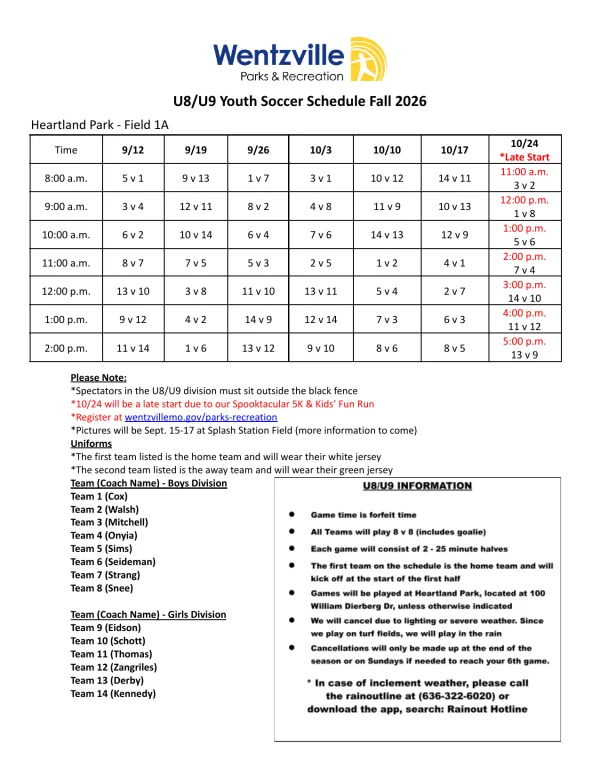
To share a calendar on iPhone, open the Calendar app, tap Calendars, tap the Info button next to an iCloud calendar, then tap Add Person and enter your partner’s email address. They get an invitation, and once they join, every event either of you adds shows up on both phones. If someone in the family has an Android phone, an iCloud invitation won’t reach their calendar, so share a public link or use a Google calendar instead; both are covered below.
This guide is written by the people who make Calendar Vision, a tool that reads events out of photos, PDFs, emails, and web pages. The sharing steps follow Apple’s own iPhone User Guide, checked on November 19, 2026. The last section is about the part that comes after sharing: getting the school calendar and the team schedule into the calendar you just shared, without typing them in.
How do I share my calendar on iPhone?
Only iCloud calendars can be shared from the iPhone’s Calendar app. Calendars from Google, Outlook, or a work account are shared from their own apps. If you haven’t already, check that iCloud Calendar is on: open Settings, tap your name, then iCloud, and turn on Calendars.
It’s best to make a new calendar for the family rather than share your own. Your work meetings and doctor’s appointments stay yours, and the shared one gets its own color.
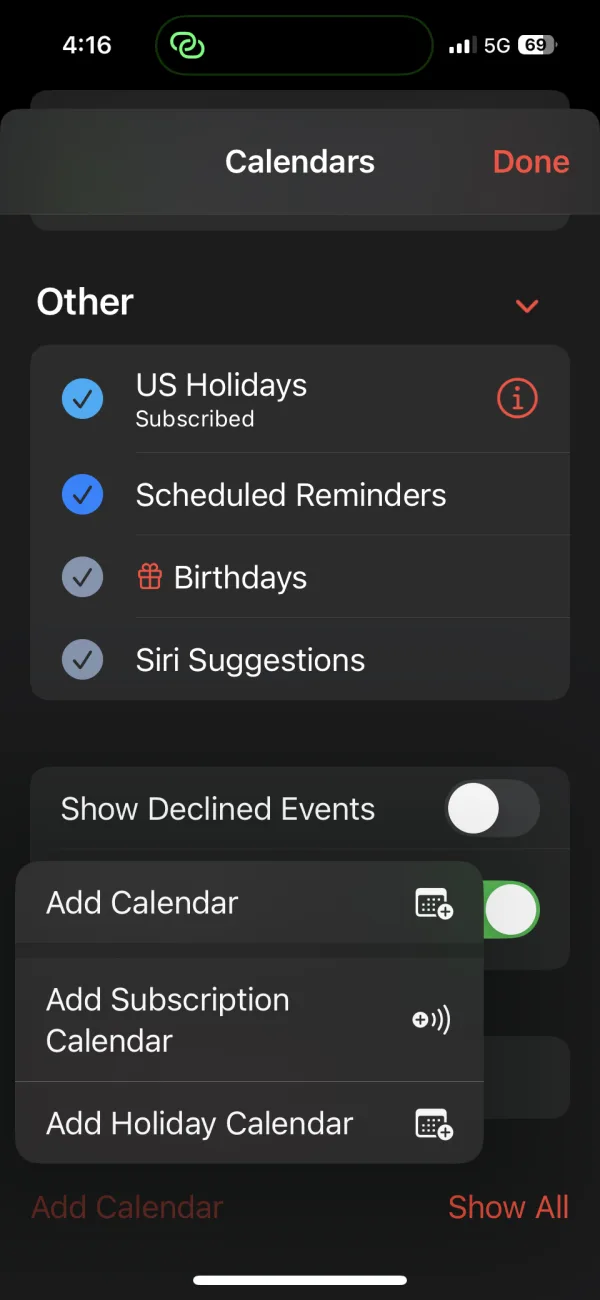
- Create the calendar. In the Calendar app, tap Calendars at the bottom, then Add Calendar, then Add Calendar again. Choose iCloud, name it something like “Family,” pick a color, and tap Done.
- Open its settings. Back in the Calendars list, tap the Info button (the small i) next to the new calendar.
- Invite your partner. Tap Add Person, type their name or email address, and tap Add. Apple needs an email address for every person you invite, and it should be the one they use for their Apple Account.
- They accept. The invitation arrives as a notification and in the Calendar app’s inbox on their iPhone. When they tap Join Calendar, the calendar appears in their Calendars list.
Repeat Add Person for each person you want to include: a co-parent, a teenager with their own iPhone, a grandparent who does the Tuesday pickups. The calendar also shows up on everyone’s iPad and Mac, as long as they’re signed in to the same Apple Account there.
How do I sync my calendar with my husband’s or wife’s?
This is the most common reason people search for sharing, and the answer is the shared calendar above. You don’t sync two personal calendars together. You both join one shared calendar, put family events there, and keep your own calendars for everything else. Each of you sees both, side by side, in the Calendar app.
Can the other person edit my calendar?
Yes, by default. People you invite can add, change, and delete events. To make it view-only for someone, open the calendar’s Info screen, tap their name, and turn off Allow Editing. That suits a grandparent who should see the schedule but not move things around.
To stop sharing with someone, tap their name on the same screen and tap Stop Sharing. Their phone loses the calendar right away.
Whoever changes an event, everyone sees the change. Your iPhone also notifies you when someone changes a calendar you share. If a busy week makes that noisy, open Settings, tap Notifications, then Calendar, then Customize Notifications, and turn off Shared Calendar Changes.
The Family calendar from Family Sharing
If your household already uses Family Sharing, you may have a shared calendar without doing anything. When a family joins Family Sharing, Apple sets up a calendar named Family on everyone’s devices, along with a shared photo album. Family Sharing covers up to six people, so it fits most households.
Look for Family in your Calendars list. If it’s there, every member can already add events to it, and you can skip the steps above. The catch is that it comes with the whole Family Sharing group: everyone in the group sees it, and you can’t leave one person out. A calendar you make yourself lets you choose exactly who’s in it, such as both parents and a nanny, who wouldn’t be part of your Family Sharing.
How to share an iPhone calendar with Android
An Add Person invitation only works for someone with an Apple Account, and an Android phone can’t show iCloud calendars on its own. If someone in the family is on Android, you have two good options.
Option 1: Share a public link (they can view, not edit)
- On the calendar’s Info screen, turn on Public Calendar.
- Tap Share Link and send the address to them.
- On a computer, they open Google Calendar, click the plus sign next to “Other calendars,” then “From URL,” and paste the address. The Google Calendar phone app can’t add one, but the calendar shows up on their phone once it’s added. How to subscribe to a calendar has screenshots of each step.
It’s read-only for them, and Google checks the link on its own schedule, so a change you make can take several hours to reach their phone. Anyone who has the link can see the calendar, so keep it to family.
Option 2: Use a Google calendar on both phones (everyone can edit)
If everyone needs to add events, make the family calendar in Google Calendar instead and share it there: on a computer, open the calendar’s settings, go to “Share with specific people,” and add each person’s email with permission to make changes. On the iPhone, open Settings, tap Apps, then Calendar, then Calendar Accounts, and add your Google account. The shared Google calendar then shows up in the iPhone’s Calendar app next to your iCloud calendars, and you can add and edit events there like any other.
Which way should your family share?
| Your family | Best way to share | Who can edit |
|---|---|---|
| Everyone has an iPhone and uses Family Sharing | The Family calendar | Everyone in the group |
| Everyone has an iPhone, and you want to choose who’s in | A new iCloud calendar with Add Person | Whoever has Allow Editing on |
| Some iPhones, and someone on Android only needs to see it | An iCloud calendar with a public link for them | iPhone members only |
| Some iPhones, and someone on Android needs to add events | A shared Google calendar, added to each iPhone | Everyone you give permission |
Fill the shared calendar with school and sports schedules
A shared calendar is only as useful as what’s in it. The hard part for most families isn’t sharing, it’s the 50 school closures, early dismissals, and game times that arrive as PDFs, emails, and photos of a flyer, and that someone then has to type in. Calendar Vision does that part. To show what that looks like, here is the Philadelphia school district’s 2026–27 calendar, a four-page PDF.
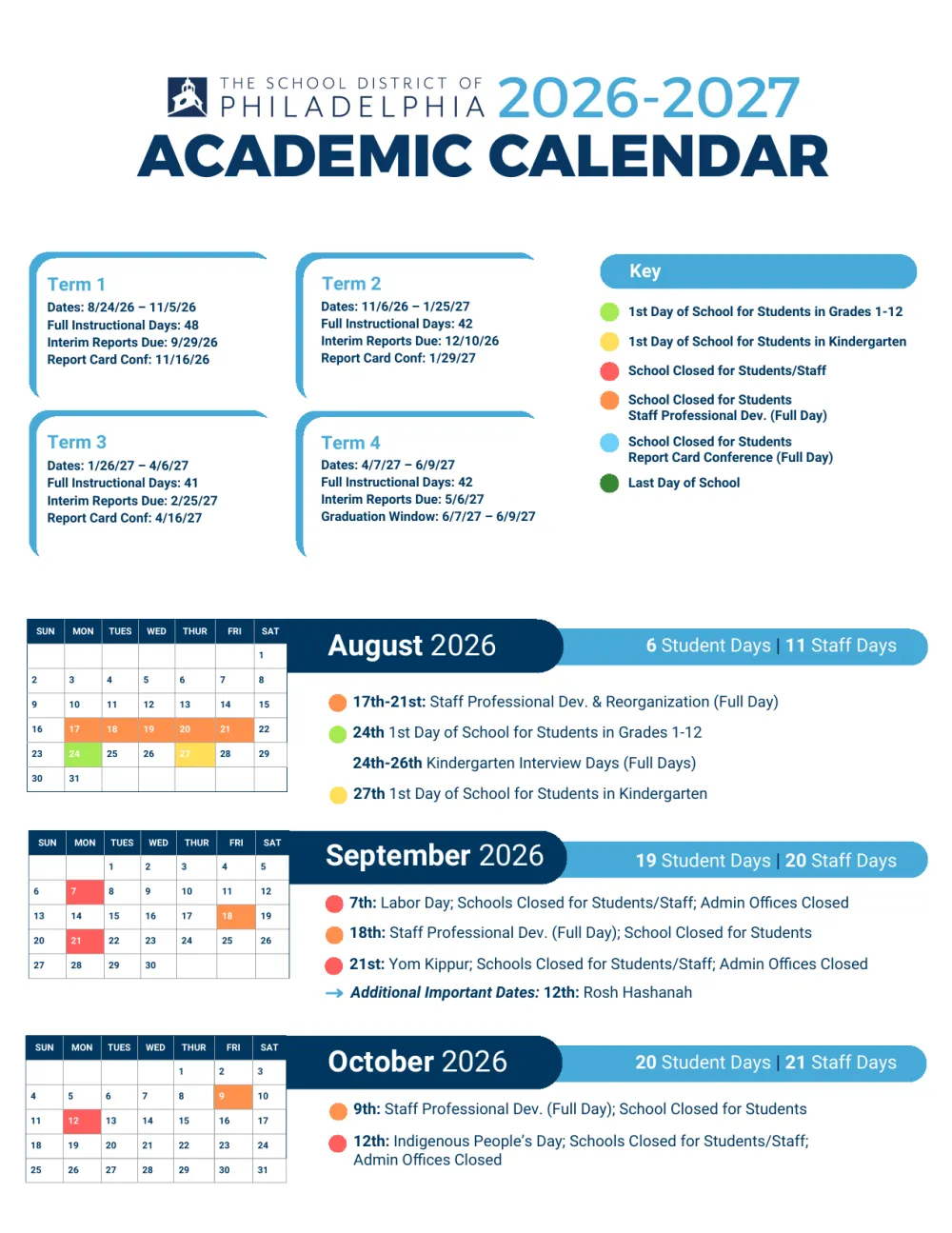
Upload the PDF to Calendar Vision, or share a photo of it, or forward the school’s email. From this PDF it made 54 all-day events, with multi-day breaks like Winter Recess as one event each. Then put them in the shared calendar one of two ways.
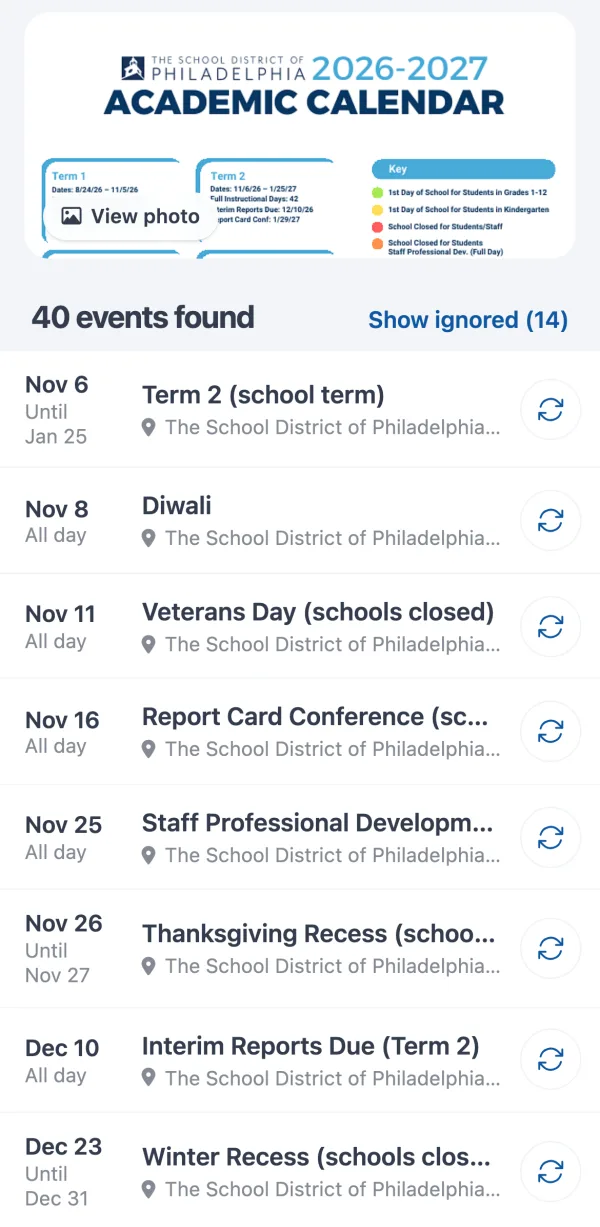
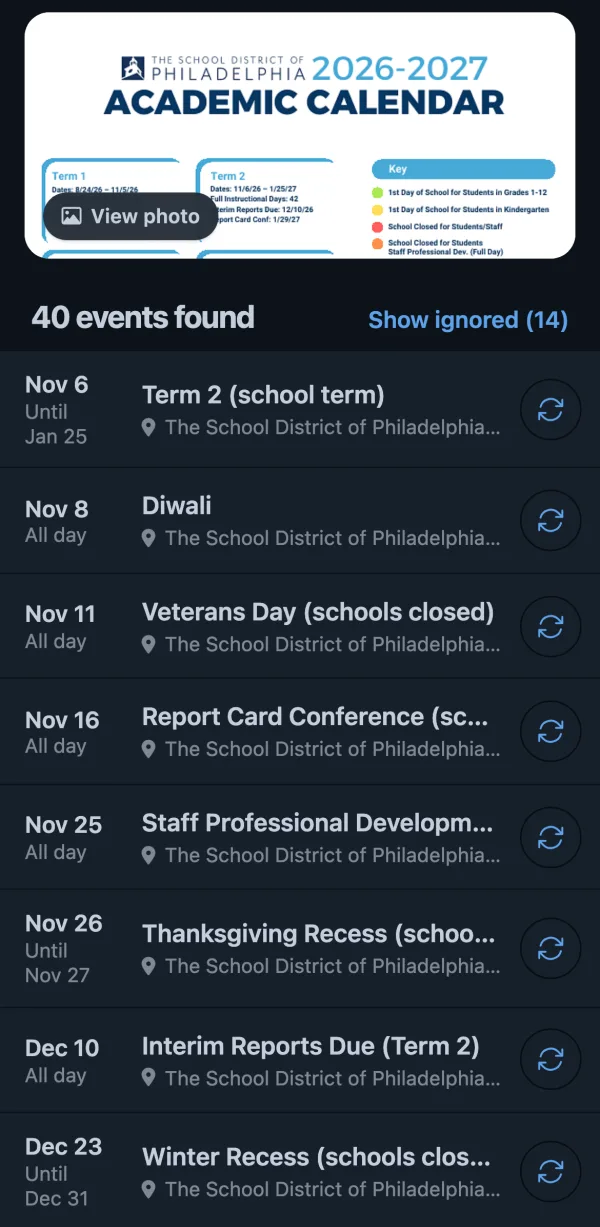
Add the events straight to the shared calendar
In the Calendar Vision iPhone app, tap Add to Calendar on an event. Apple’s event screen opens with every detail filled in; tap Calendar, choose the shared one, and tap Add. Your partner sees the event on their phone a moment later, like any event you add to a shared calendar. To add several at once, tap Select, choose the events, and tap Add: the app asks which calendar, once, for all of them.
Or subscribe each phone to your Calendar Vision calendar
If you’d rather keep school and sports separate from the family’s own plans, tap Sync on the events you want. They go into your Calendar Vision calendar, which has its own address. Subscribe to that address on your iPhone, then send it to your partner and have them subscribe on theirs, and on Android with Google Calendar’s “From URL.” Everything you sync from then on, the next school email or the coach’s photo of the season, shows up on every phone on its own. The steps are in how to subscribe to a calendar.
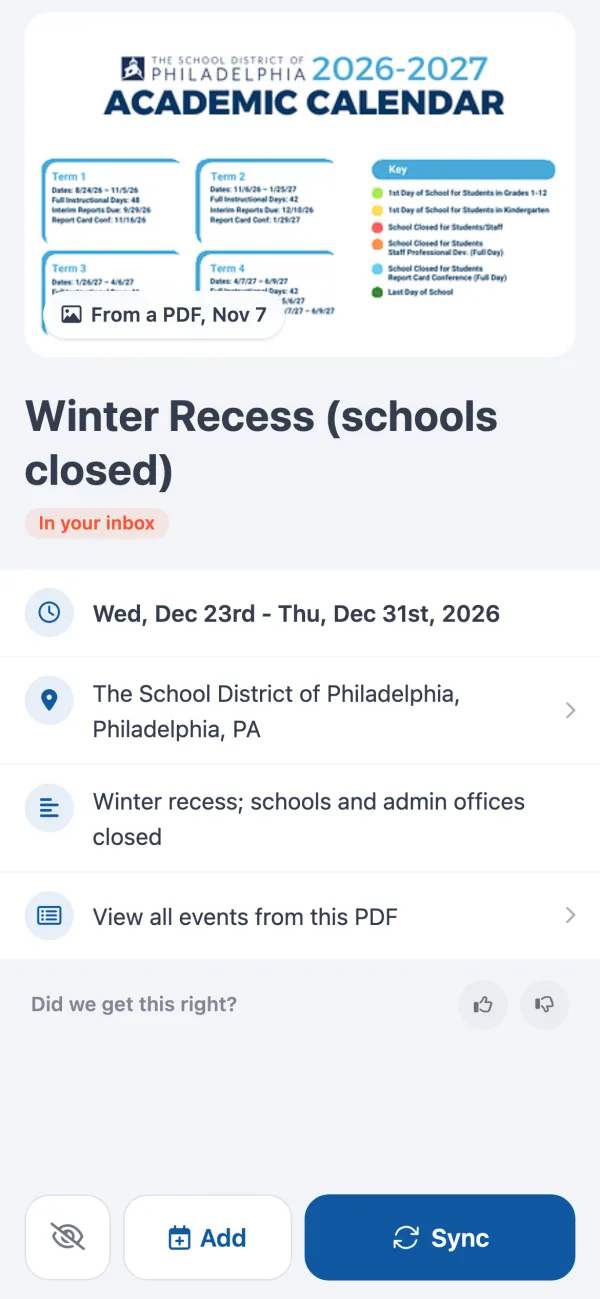
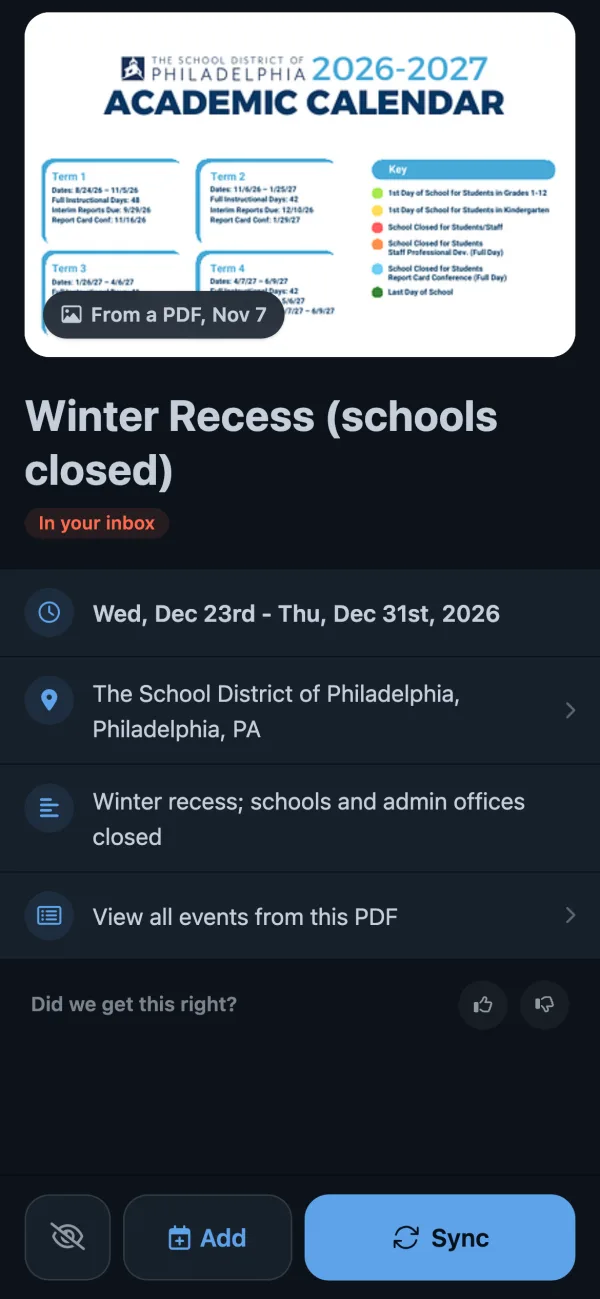
Adding events directly lets everyone edit them, since they’re ordinary events in the shared calendar. The subscription is read-only on every phone, but it reaches Android without a Google calendar, and a fix you make in Calendar Vision reaches everyone. Calendar Vision is free for your first 3 extractions, and Pro is $3.99 a year or a one-time $9.99 for unlimited ones. If you’re still deciding what the family should use beyond the iPhone’s own calendar, the best family calendar apps compares Cozi, TimeTree, FamilyWall, and the wall displays.
Frequently asked questions
- How do I share my calendar on iPhone?
- Open the Calendar app, tap Calendars, and tap the Info button next to an iCloud calendar. Tap Add Person, enter the person's email address, and tap Add. They get an invitation, and once they join, the calendar shows up on their iPhone.
- How do I create a shared calendar on iPhone?
- In the Calendar app, tap Calendars, then Add Calendar. Choose iCloud, name it something like Family, and tap Done. Then tap the Info button next to it and use Add Person to invite each family member.
- How do I sync my calendar with my husband's?
- Make one shared iCloud calendar and invite him with Add Person, rather than trying to merge your personal calendars. You both add family events to the shared calendar and keep your own calendars for everything else. Each of you sees both on your iPhone.
- Can I share my iPhone calendar with someone who has an Android phone?
- Not with Add Person, which needs an Apple Account. Turn on Public Calendar for the calendar and send them the link to add in Google Calendar, which gives them a view-only copy. If they also need to add events, share a Google calendar instead and add your Google account to the iPhone.
- Can people I share my calendar with edit it?
- Yes, by default. To make it view-only for someone, open the calendar's Info screen, tap their name, and turn off Allow Editing. To remove them, tap Stop Sharing.
- Does Family Sharing come with a shared calendar?
- Yes. When a family joins Family Sharing, Apple sets up a calendar named Family on everyone's devices. Every member can add events to it, but you can't leave someone in the group out of it.
- How do I get the school calendar into our shared calendar?
- Send the school's PDF, email, or a photo of the calendar to Calendar Vision. It turns each date into an event, and in the iPhone app you add them to the shared calendar in one go. It's free for 3 extractions, then $3.99 a year.