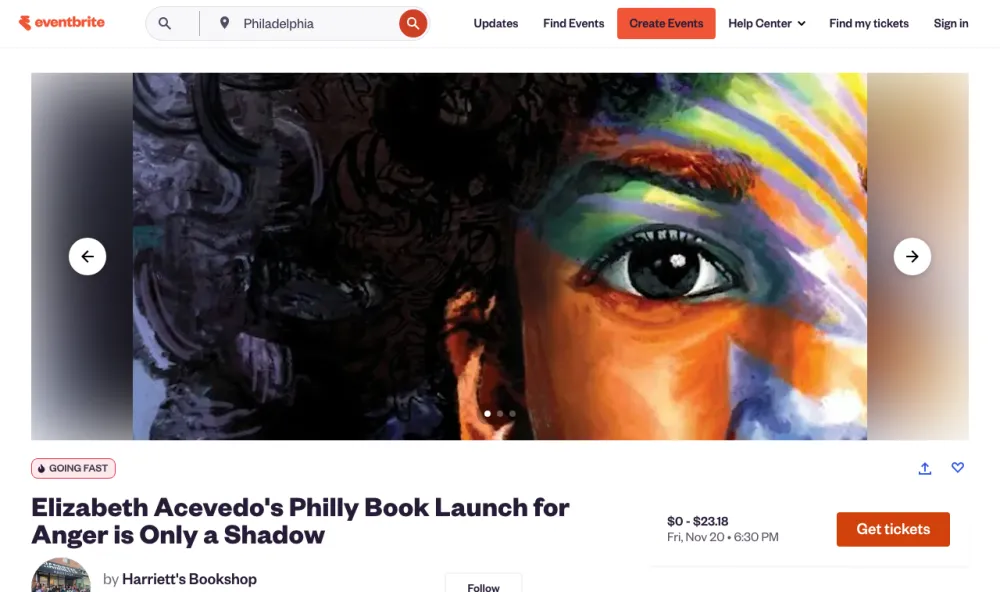
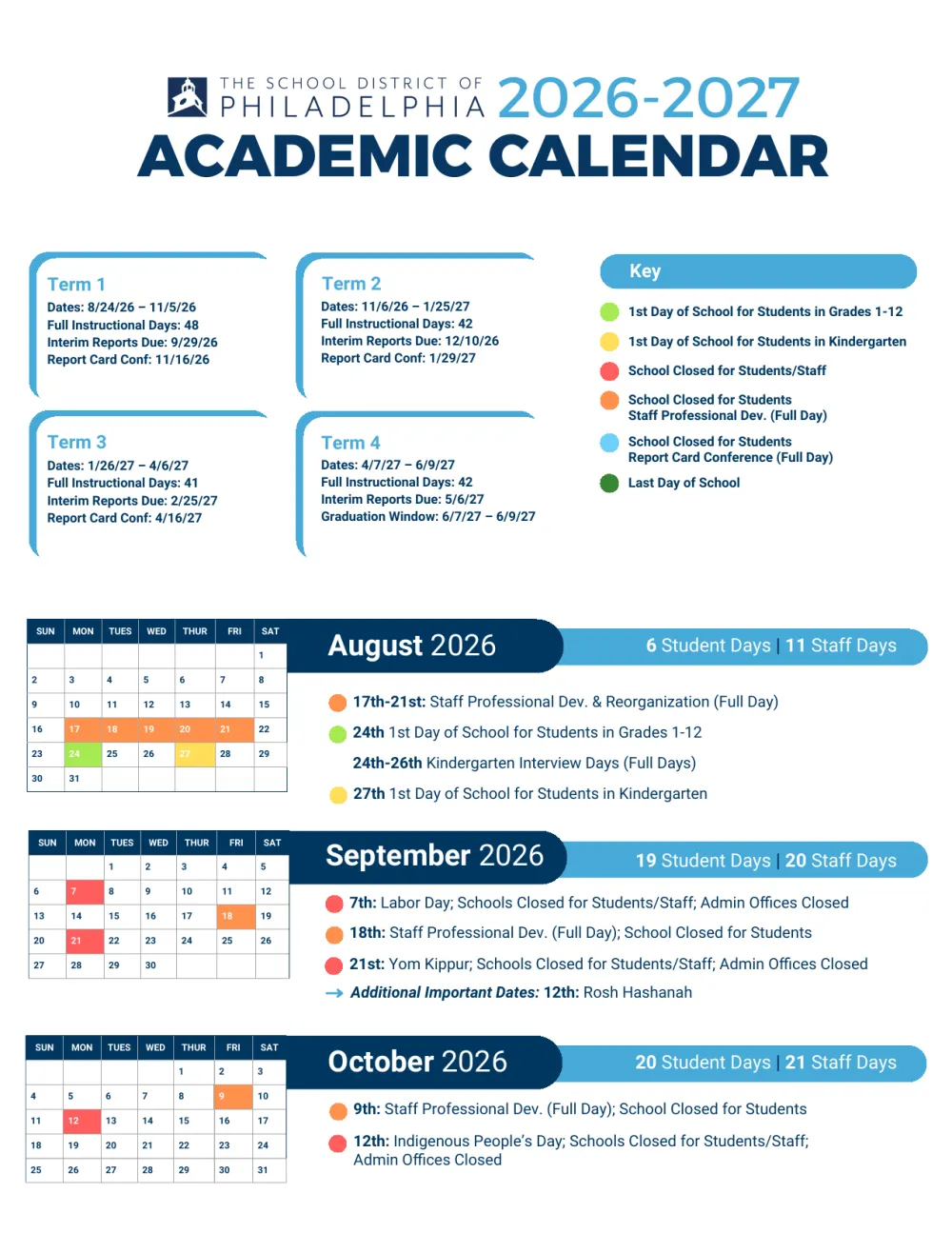
To subscribe to a calendar, copy its web address (it usually ends in .ics) and add it as a new calendar in your calendar app. In Google Calendar, that’s “Other calendars,” then “From URL.” On an iPhone, it’s Calendars, then “Add Subscription Calendar.” In Outlook, it’s “Add calendar,” then “Subscribe from web.” New events then show up on their own.
Subscribing is different from importing. An imported .ics file is a one-time copy; if the events change, your calendar doesn’t. A subscription stays connected to the address, so your calendar app checks it for changes on a schedule. The same steps work for any calendar feed: a school district, a sports team, a holiday calendar, or your Calendar Vision events.
This guide uses Calendar Vision’s feed as the example, but every step after the first applies to any subscription address.
How do I sync Calendar Vision events to my calendar?
Step 1: Sync the events you want
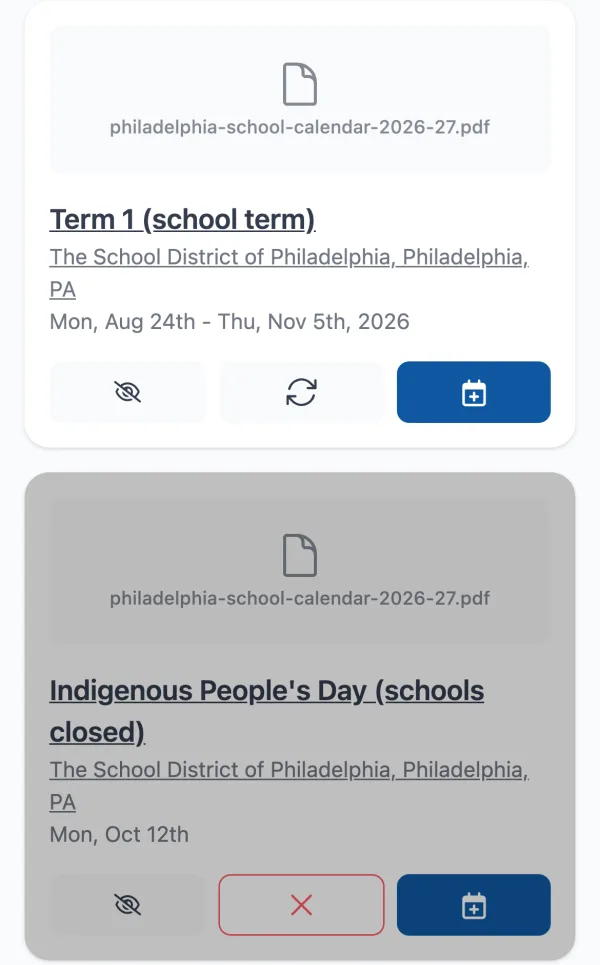
Every event in Calendar Vision has a Sync button, the one with two circling arrows. Tap it and the event moves into your Synced Events calendar, the one your calendar app will subscribe to. Synced events turn gray and the button becomes an X, which you can tap later to unsync.
Step 2: Open Sync to Calendar
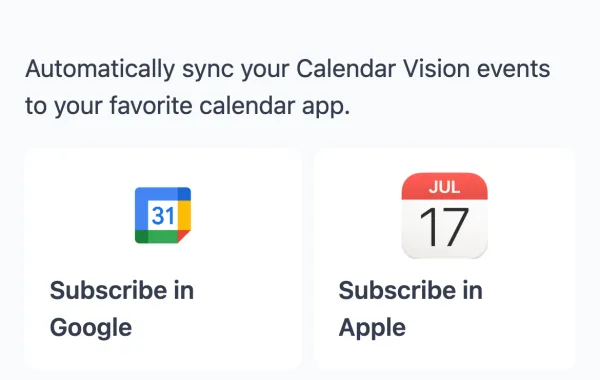
Open your calendar in Calendar Vision and tap the question mark at the top. The Sync to Calendar screen has one-tap buttons for Google and Apple, plus your calendar’s subscription address for any other app.
Step 3: Subscribe once
Tap “Subscribe in Google” or “Subscribe in Apple” and confirm in your calendar app. For Outlook or anything else, copy the address and follow the steps below. You only do this once. Everything you sync from now on shows up in the same calendar, named “Calendar Vision - Synced Events” (or “Calendar Vision Events” on older accounts).
How do I subscribe to a calendar in Google Calendar?
- On a computer, open Google Calendar. You can’t add a subscription address in the Google Calendar phone app.
- On the left, next to “Other calendars,” click the plus sign, then “From URL.”
- Paste the calendar’s address and click “Add calendar.”
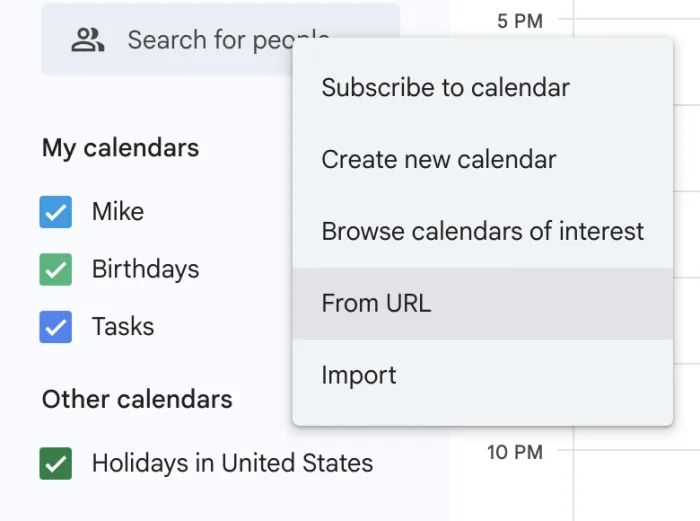
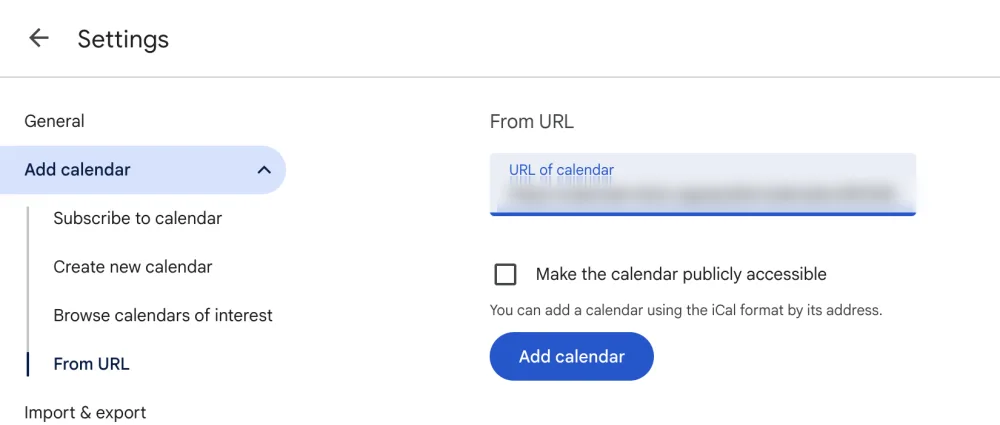
The calendar appears under “Other calendars” and on your Android phone once Google Calendar syncs. If it doesn’t show up on your phone, open the Google Calendar app’s settings, tap the calendar, and turn on Sync.
How do I subscribe to a calendar on iPhone?
- Open the Calendar app and tap Calendars.
- Tap Add Calendar, then Add Subscription Calendar.
- Paste the calendar’s address and tap Subscribe (Find on iOS 26).
- Choose iCloud as the account so the calendar also shows up on your Mac and iPad, then tap Add (Done on iOS 26).
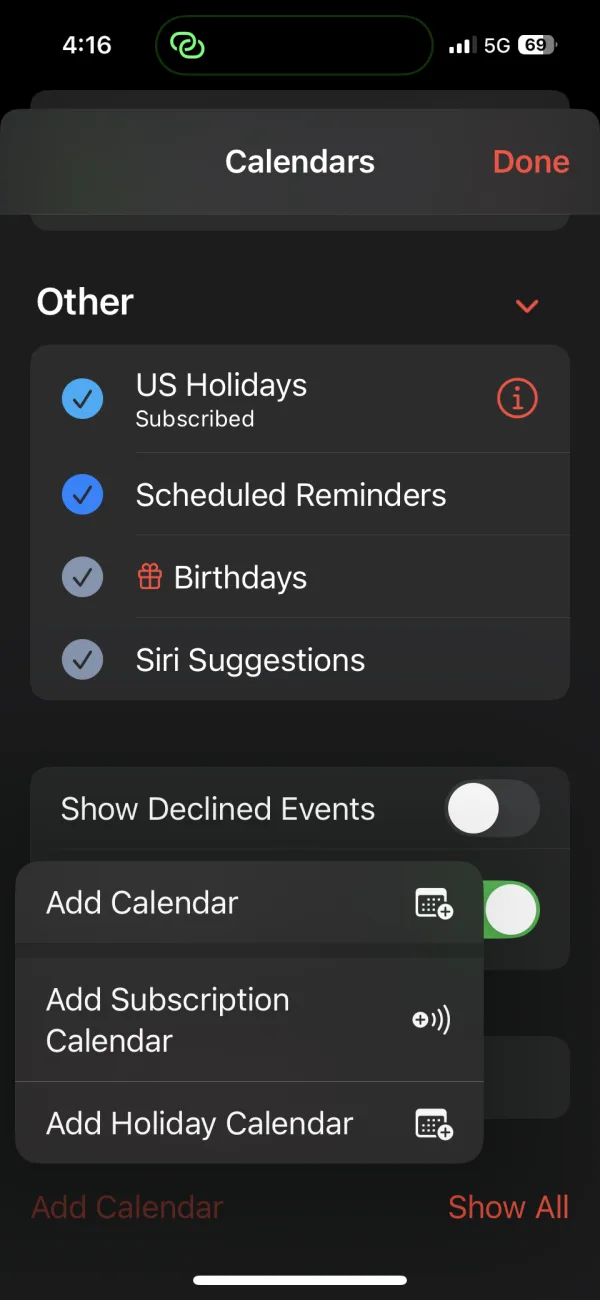
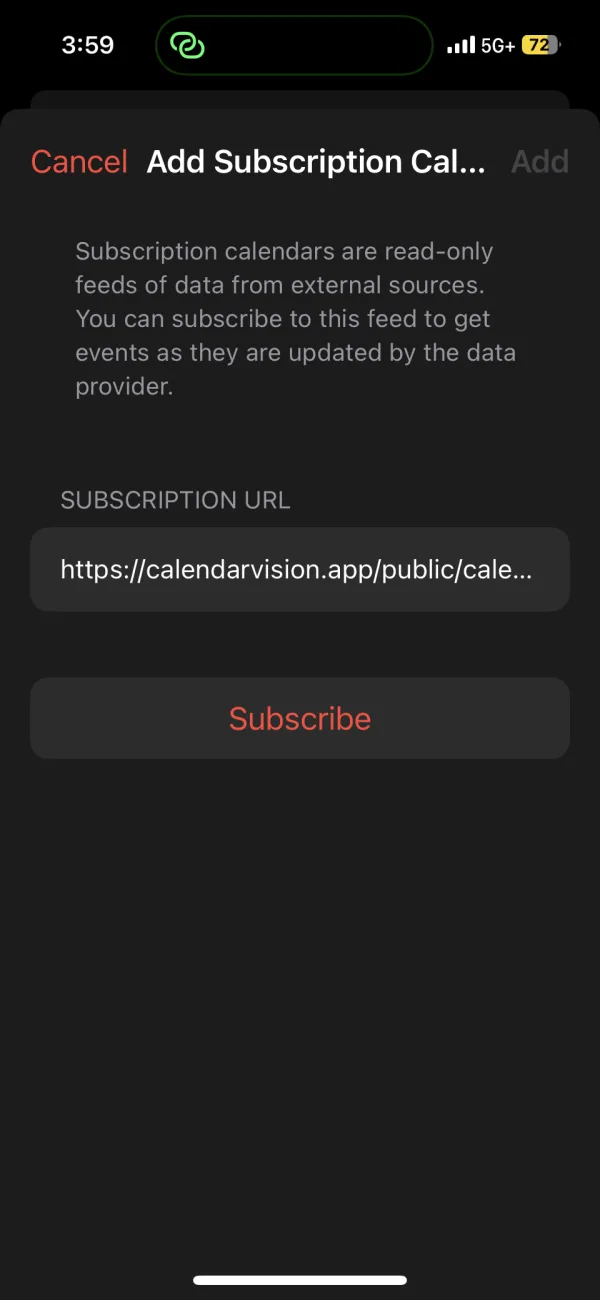
On a Mac, open Calendar and choose File, then New Calendar Subscription. Paste the address, click Subscribe, and choose iCloud as the location.
How do I subscribe to a calendar in Outlook?
- In Outlook on the web or Outlook.com, open Calendar and click Add calendar.
- Click Subscribe from web.
- Paste the address, give the calendar a name, and click Import.
Despite the button’s name, this creates a subscription, not a one-time import, so the calendar keeps updating.
Should I add events or sync them?
Calendar Vision gives every event both options. Here’s how they differ:
| Add to Calendar | Sync | |
|---|---|---|
| What happens | A copy of the event goes into your calendar app | The event goes into your Calendar Vision feed, which your calendar app subscribes to |
| Setup | None | Subscribe once |
| When it shows up | Right away | The next time your calendar app checks the feed |
| If you edit it in Calendar Vision | The copy doesn’t change | The change shows up in your calendar app |
| To remove it | Delete it in your calendar app | Tap the X in Calendar Vision |
| Edit it in your calendar app | Yes | No, subscribed calendars are read-only |
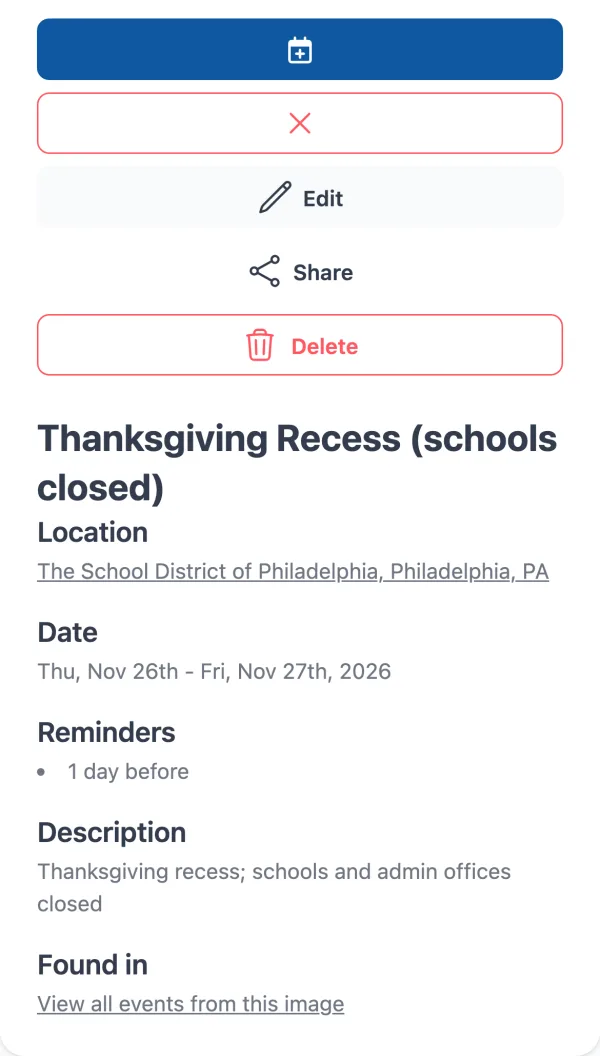
Add a one-off event, like a concert you just bought tickets for. Sync anything that comes in batches or might change: a school year’s worth of days off, ticket sale dates, or weekly events from flyers.
Why isn’t my subscribed calendar updating?
Your calendar app decides when to check for changes, and each one is different:
- Google Calendar checks subscriptions every few hours and has no refresh button. A new event can take several hours to appear.
- Outlook usually updates about every three hours, but Microsoft says it can take more than 24.
- Apple Calendar on a Mac lets you choose how often to refresh. Right-click the calendar, choose Get Info, and set Auto-refresh.
If you need an event right now, use Add to Calendar for that one and keep syncing the rest.
How do I get the most out of a subscribed calendar?
- Subscribe in one place. If your iPhone also uses your Google account, subscribe in Google or in iCloud, not both, or you’ll see every event twice.
- Show Google subscriptions on an iPhone. Calendars you subscribe to in Google don’t appear in the iPhone Calendar app until you turn them on at calendar.google.com/calendar/syncselect.
- Turn on reminders. Calendar Vision can remind you about synced events. Set a default reminder for the calendar and turn on notifications for upcoming events in Notification Settings.
- Keep the address private. Anyone with your subscription address can see the events you sync, so share it only with people you’d share your calendar with.
Frequently asked questions
- What's the difference between subscribing to a calendar and importing it?
- An import copies the events once, and your calendar never hears about changes. A subscription stays connected to the calendar's address, so your calendar app checks it for new and changed events on a schedule.
- Can I subscribe to a calendar in the Google Calendar app on my phone?
- No. Add the subscription in Google Calendar on a computer under Other calendars, then From URL. It then shows up in the Google Calendar app on your phone.
- How often does a subscribed calendar update?
- It depends on your calendar app. Google Calendar checks every few hours with no refresh button, Outlook usually updates about every three hours but can take more than a day, and Apple Calendar on a Mac lets you choose how often to refresh.
- Can I edit events in a subscribed calendar?
- No. Subscribed calendars are read-only in your calendar app. Edit the event in Calendar Vision instead, and the change shows up the next time your calendar app refreshes.
- Should I add Calendar Vision events or sync them?
- Add a single event when you want it on your calendar right away. Sync events that come in batches or might change, like a school calendar, so edits and removals flow through automatically.