Google Calendar can’t read your work schedule from a photo, a screenshot, or a PDF, so most people end up typing every shift in by hand. First check whether your employer’s scheduling app has a calendar sync; if it does, subscribe once and you’re done. If it doesn’t, or your schedule is a sheet on the break-room wall, take a photo of it, let Calendar Vision create your shifts, and sync them to Google Calendar or your iPhone.
Can my scheduling app add shifts to my calendar?
Some can, and that’s the best option because the shifts update when your manager changes them. Two examples whose help pages describe it:
- Deputy: open your Profile and choose to add your shifts to your personal calendar app. Pick the webcal link, not the one-time .ics file, so it keeps updating. In the iPhone app, it’s the calendar icon under Upcoming Shifts. Deputy says Google Calendar picks up changes every 8 to 24 hours.
- 7shifts: Calendar Sync is set up from the 7shifts website, not the mobile app. It gives you a personal link; don’t share it.
In other apps, look in your profile or settings for “calendar sync,” “add to calendar,” or “webcal.” If it’s there, add the link in Google Calendar under “Other calendars,” then “From URL”; how to subscribe to a calendar has the steps for Google Calendar and iPhone. If the option is missing, your manager may have turned it off, or the schedule only exists on paper. That’s where the rest of this guide comes in.
How do I turn a photo of my schedule into calendar events?
Step 1: Get the schedule onto your phone
Take a photo of the posted schedule, straight on and close enough that every time is readable, or take a screenshot of it in your scheduling app. A PDF or an email with the schedule works too.
Step 2: Add it to Calendar Vision with your name
In Calendar Vision, tap Add events and add the photo, screenshot, or PDF. Before you upload, type your name in “Only include events for.” A posted schedule lists the whole team, and this keeps only your shifts. Use your name the way it’s written on the schedule.
Step 3: Check your shifts
Each shift becomes one event with its start and end time. Check the count against your week, make sure days off were left out, and look at any shift that ends after midnight: it should end the next morning, not the same day. To rename them all at once, for example to “Work,” use Bulk Edit Events.
Step 4: Sync them to your calendar
Tap Sync on the shifts you want, or Sync all, and subscribe to your Calendar Vision calendar once in Google Calendar or Apple Calendar. Your shifts show up on your phone next to everything else.
What does that look like?
To show what that looks like, here is a sample weekly schedule, the kind posted in a break room at a 24-hour diner: eight people, a week of shifts, days off, and overnight shifts that end the next morning.
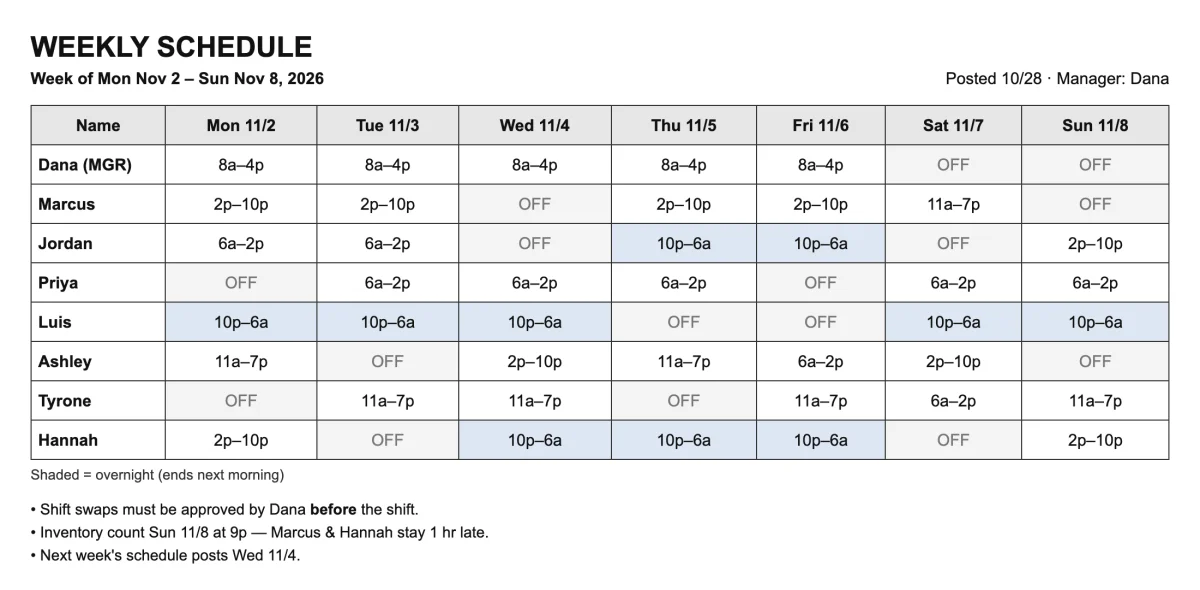
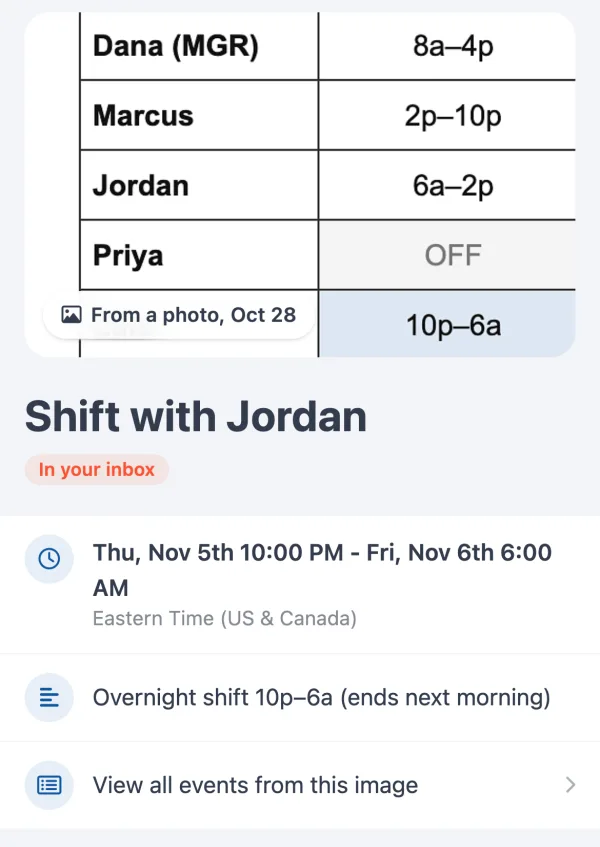
With “Jordan” typed in “Only include events for,” Calendar Vision found Jordan’s five shifts and nobody else’s. Wednesday and Saturday, both marked OFF, were left out.
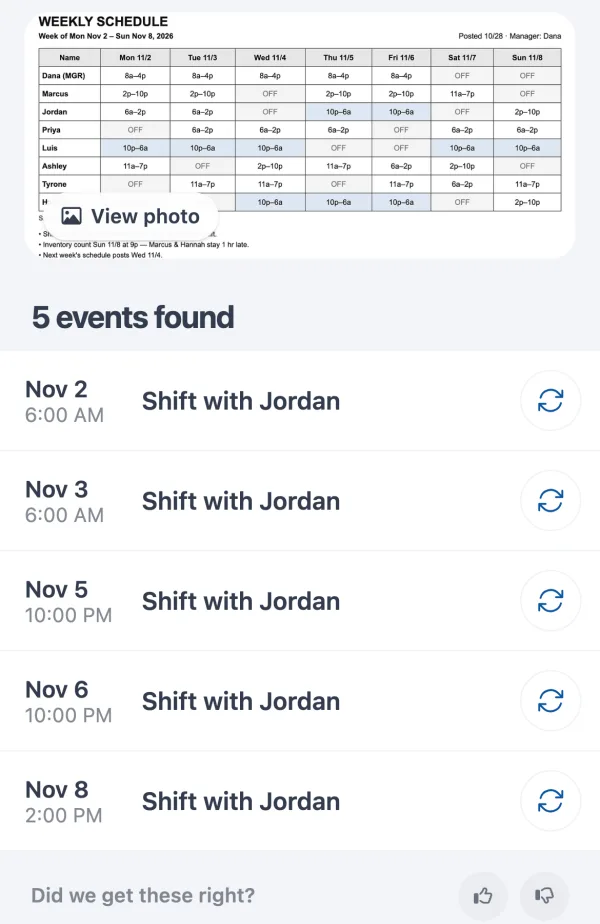
The two overnight shifts end at 6:00 AM the next day, so Thursday’s 10p–6a runs into Friday morning on your calendar, the way you’ll actually work it.
How do I get next week’s schedule in without redoing everything?
Once you’ve subscribed to your Calendar Vision calendar, you never set it up again. When next week’s schedule goes up, take a photo, add it with your name, and sync the shifts; they appear in Google Calendar or on your iPhone on their own. If your manager reposts the week with changes, add the new version: Calendar Vision marks shifts that look like ones you already have, so you only sync what changed.
If you’d rather have a file, Calendar Vision on the web has a Download .ics button under the events, and how to import an ICS file into Google Calendar covers the rest. An imported file won’t update, though, so syncing is the better habit for a schedule that changes every week.
How do I add my work schedule to my iPhone calendar?
The steps are the same: add the photo to Calendar Vision with your name, check the shifts, sync them, and subscribe to your Calendar Vision calendar in Apple Calendar instead of Google Calendar. If you already use Google Calendar on your iPhone through a Google account in Settings, subscribing in Google Calendar is enough; turn the calendar on at calendar.google.com/calendar/syncselect and the shifts show up in the iPhone’s Calendar app with your Google calendars. How to subscribe to a calendar walks through both.
The same works for anything else that arrives as a picture: a flyer or a photo of an event, a school calendar, or a team’s game schedule.
Frequently asked questions
- How do I import a work schedule into Google Calendar?
- If your scheduling app has a calendar sync, subscribe to its link in Google Calendar. Otherwise, take a photo or screenshot of the schedule, add it to Calendar Vision with your name, and sync the shifts to Google Calendar.
- Can it pick out only my shifts from a schedule with everyone on it?
- Yes. Type your name in Only include events for before you upload, written the way it appears on the schedule. Calendar Vision reads the whole schedule and creates events only for your shifts.
- What about overnight shifts?
- A shift like 10p–6a becomes one event that ends at 6:00 AM the next day. Check those when you review your shifts.
- What if my schedule changes after I add it?
- Add the updated schedule. Calendar Vision marks shifts that look like ones you already have, so you sync only the changes. If your scheduling app has a calendar sync, that link updates on its own.
- Is this the same as working hours in Google Calendar?
- No. Working hours is a setting for work and school Google accounts that shows coworkers when you're available for meetings. It repeats every week and doesn't create events for your shifts.
- Is Calendar Vision free?
- You can start free with 3 extractions and no credit card. Calendar Vision Pro removes the limit for $3.99 a year or a one-time $9.99 lifetime purchase.