Google Calendar, Apple Calendar, and Outlook can’t import a PDF; they import .ics and .csv files. You don’t need to convert anything. Upload the PDF to Calendar Vision, it reads every date into a calendar event, and you sync the events to your calendar or download them as .ics. A school year, a league season, or a program schedule takes a few minutes instead of an evening.
Here’s how it works, with three real PDFs of three different shapes: a district’s school year calendar, a youth soccer league grid, and a weekly program schedule from a Seattle teen center.
Why can’t I import a PDF into Google Calendar?
Google Calendar’s import accepts .ics and .csv files, Apple Calendar imports .ics, and Outlook imports both. To a calendar app, a PDF is a picture of a table: it has no idea which cell is a date, which is a time, and which row they belong to. The usual advice on forums is to convert the PDF to Excel, rebuild it as a CSV with the columns Google expects, and import that. On a real schedule, with merged cells, a color key, footnotes like “*Late Start,” and four pages, that takes longer than typing the dates in by hand.
Calendar Vision reads the PDF the way you do, as a page, and creates the events directly. There is no intermediate file.
How do I turn a PDF schedule into calendar events?
Step 1: Upload the PDF
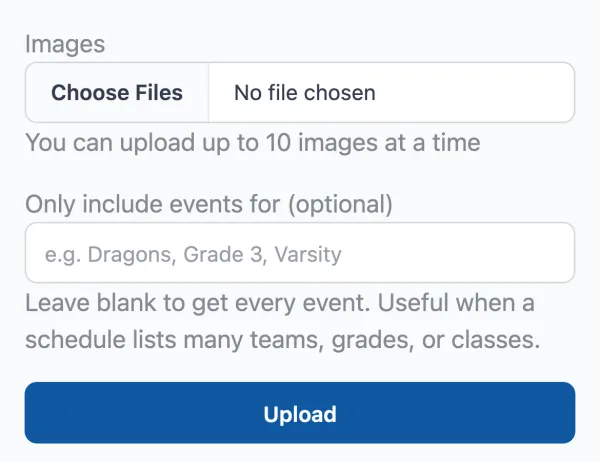
Open Upload Images, choose the PDF, and tap Upload. You can upload up to 10 files at a time, and a multi-page PDF is read page by page, so a four-page school calendar or league schedule is fine. If the schedule lists many teams, grades, or classes and you only want yours, type the name in “Only include events for” before you upload; the sports schedule guide shows what that does.
Step 2: Check the events
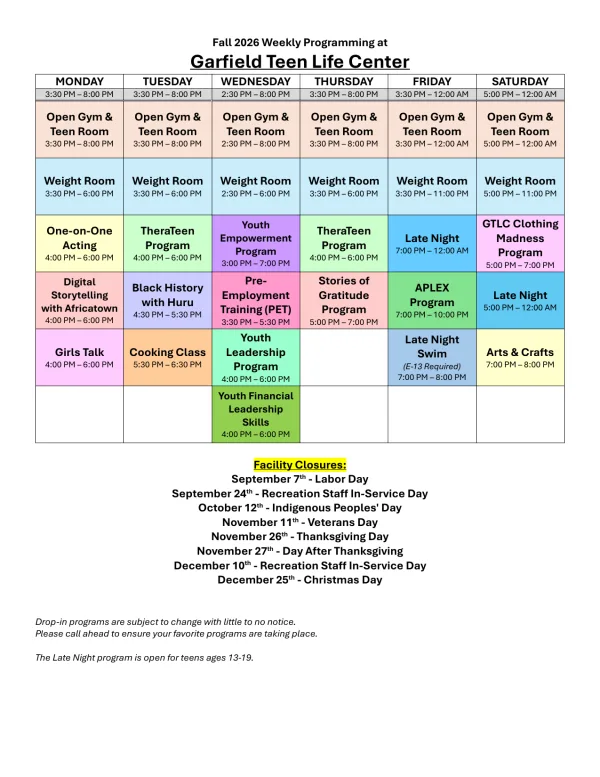
Calendar Vision creates one event per date it finds. A closure or a day off becomes an all-day event, a game or a class becomes a timed one, a break that spans several days becomes one event covering the whole break, and a program that meets every Wednesday becomes one repeating event. The Garfield Teen Life Center’s fall schedule is a Monday-to-Saturday grid of programs with a list of closure dates underneath. From it, Calendar Vision created 37 events: 29 weekly programs and 8 all-day facility closures.
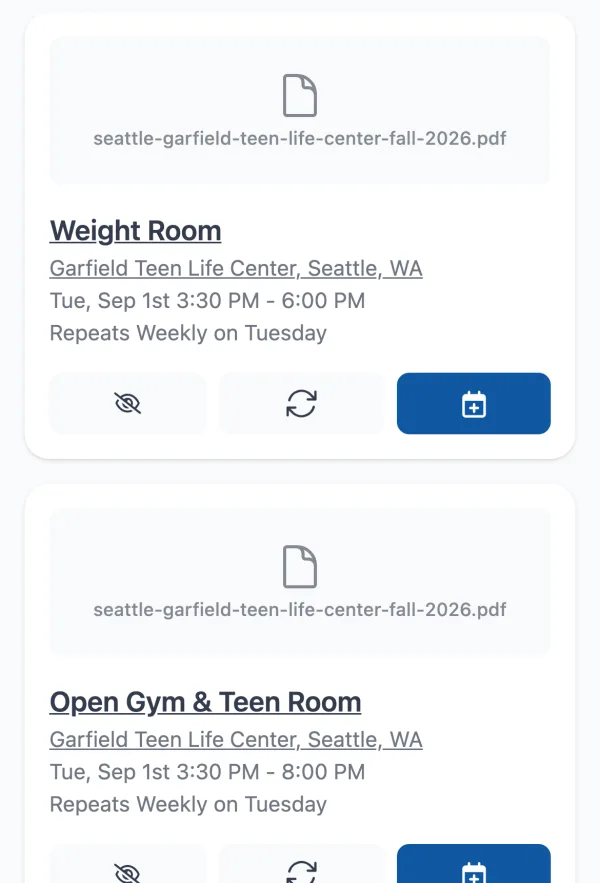
Open one and you’ll see the schedule it read. The Youth Leadership Program, listed in the Wednesday column at 4:00 to 6:00 p.m., is one event that repeats every Wednesday. TheraTeen, which appears in both the Tuesday and Thursday columns at 4:00 to 6:00 p.m., came through as a single event that repeats on Tuesdays and Thursdays rather than two separate ones.
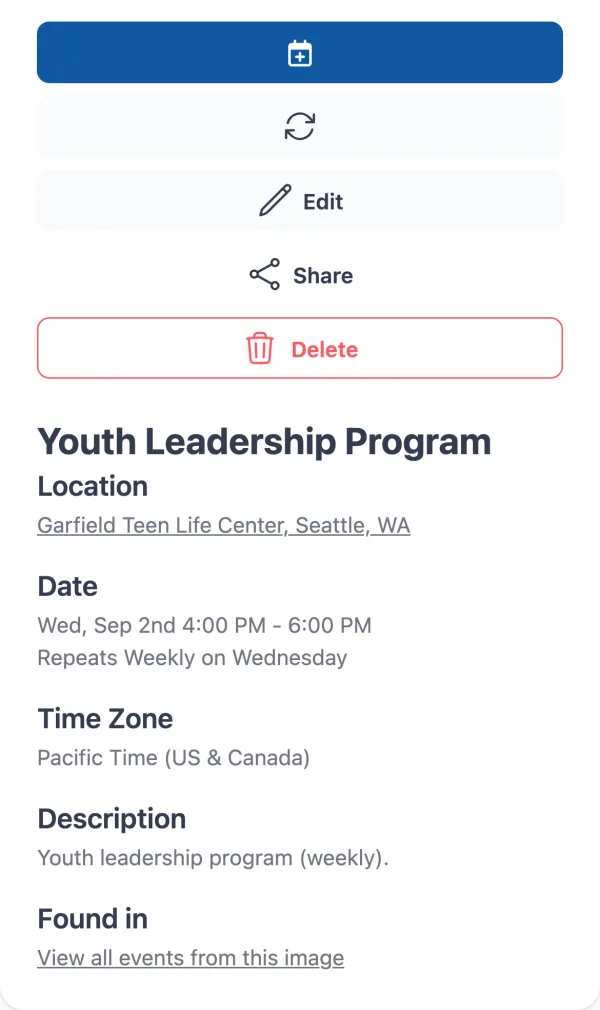
Count the events against the PDF before you trust the list. The eight closures all came through on the right dates, from Labor Day on September 7 to Christmas Day. The programs had one flaw: four that run until midnight (Friday and Saturday Open Gym and Late Night) came through with a one-hour end time instead. If you see a one-hour event where the schedule says “12:00 AM,” fix the end time once and the repeat keeps it.
Step 3: Fix things once
A schedule usually names a building, not an address. The teen center’s name resolved to its street address on its own; if yours doesn’t, tap Bulk Edit Events and set the location for every event from that upload at once. The same button renames all of them if you want “Sam: Weight Room” rather than “Weight Room.” Tap the ignore button on the programs your family won’t attend; 29 weekly events is a lot of calendar, and a teen might want three of them.
Repeating events take their end date from the PDF. This schedule doesn’t print one, so the programs repeat with no end. Open the event, tap Edit, and give the repeat an end date, such as the last day of the fall session, so the events don’t run into next year.
Step 4: Get them into your calendar
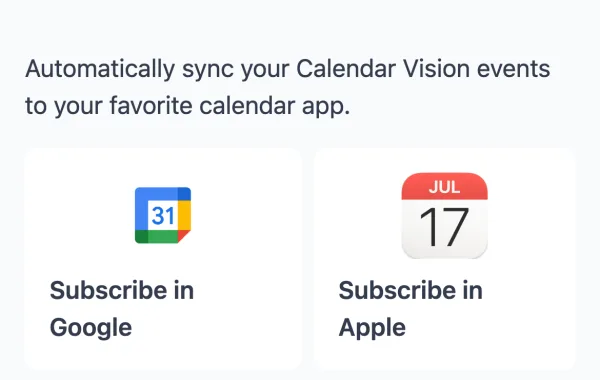
For a handful of dates, tap “Add to Calendar” on each one. For a whole schedule, sync instead: tap Sync on the events you want, then subscribe to your Calendar Vision calendar once in Google Calendar, Apple Calendar, or Outlook. The synced events show up on your phone with everything else, and the next schedule you upload appears without any import.
What comes out of three kinds of PDF?
Most schedule PDFs are one of three shapes. Here is what Calendar Vision made of a real example of each.
| The PDF | Calendar Vision creates |
|---|---|
| A school year calendar: the School District of Philadelphia’s 2026–27 academic calendar, four pages of monthly lists with a color key | About 50 all-day events: every closure, the first and last days of school, conference days, and multi-day breaks as single events, like Winter Recess from December 23 to 31. Details in how to add a school calendar to your phone. |
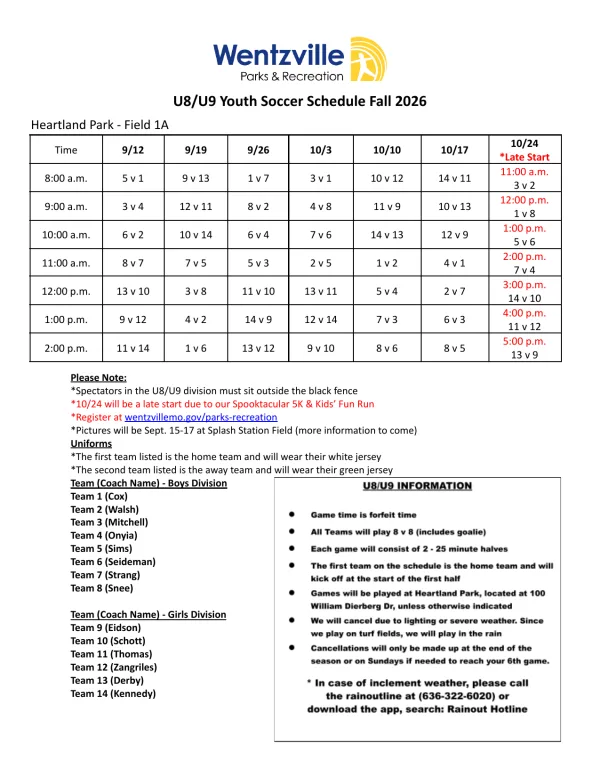
| A league grid: Wentzville’s U8/U9 soccer schedule, one page with kickoff times down the side and Saturdays across the top | 49 timed events, one per cell, 50 minutes each from the “two 25-minute halves” note, including a late-start column at different times. Details in how to add a sports schedule to Google Calendar. |
| A weekly program schedule: the Garfield Teen Life Center’s fall programming, a Monday-to-Saturday grid plus a closures list | 29 repeating weekly events, one per program, with a program that meets twice a week as one event on both days, plus 8 all-day closures |
If your PDF is a flyer for one event rather than a schedule, the same upload gives you one event, and the recurring events guide covers the “every Thursday” case.
How do I convert a PDF to an .ics file?
You don’t convert the PDF; you export the events. Once Calendar Vision has read the PDF, every event’s “Add to Calendar” button offers an .ics download for Apple Calendar or any app that imports files, next to one-click links for Google Calendar, Outlook, and Yahoo Calendar. For the whole schedule, your Calendar Vision calendar has a subscription address that any calendar app can read.
The difference matters. An imported .ics file is a copy frozen at the moment you imported it. A subscription stays connected, so when you upload the revised schedule in October and sync the changed events, your calendar updates on its own. How to subscribe to a calendar walks through Google, Apple, and Outlook.
Can I send a PDF schedule to a Skylight or other wall calendar?
Wall calendars like Skylight and Hearth don’t read PDFs either. They show whatever is in the Google, Apple, or Outlook calendars you connect to them. So the path is the same: upload the PDF to Calendar Vision, sync the events, subscribe to your Calendar Vision calendar from the account the wall calendar uses, and the schedule appears on the wall along with everything else in that account.
Which PDFs work best?
- A real PDF beats a photo of one. Text PDFs keep the small print sharp, and the small print is where the footnotes are. A scanned PDF or a photo of a printout works too; take it straight on, in good light, and crop to the table.
- Grids with dates in the headers work well. Days across the top and times down the side, or a month with dates in the cells, both read reliably. The hard cases are times that cross midnight and dates that live only in a footnote.
- Four pages are fine; forty are not. Each page is read on its own, and events that appear on more than one page are merged. For a long document, upload the pages with the schedule on them.
- Use the filter for crowded schedules. A league with 20 teams or a studio with 30 classes gives you everything unless you name yours.
Frequently asked questions
- Can I import a PDF calendar into Google Calendar?
- Not directly; Google Calendar imports .ics and .csv files. Upload the PDF to Calendar Vision, which turns each date into an event, then sync the events to Google Calendar by subscribing once, or add them one at a time.
- How do I convert a PDF schedule to .ics?
- Upload the PDF to Calendar Vision. Each event it creates has an .ics download under Add to Calendar, and the whole calendar has a subscription address that Apple Calendar, Google Calendar, and Outlook can read.
- Does it work with a scanned PDF or a photo of the schedule?
- Yes. A text PDF reads best because the small print stays sharp, but a scanned PDF or a straight-on photo of the printed schedule works the same way.
- What about a PDF with several teams or classes on it?
- Type your team, grade, or class in "Only include events for" when you upload. Calendar Vision reads the whole PDF and creates events only for the one you named.
- Do the events update when the school or league changes the PDF?
- Upload the revised PDF and Calendar Vision marks events that look like ones already in your calendar, so you only add what changed. If you subscribed to your Calendar Vision calendar, the changes you sync appear in your calendar app on their own.
- Is Calendar Vision free?
- You can start free with 5 extractions and no credit card. Calendar Vision Pro removes the limit for $3.99 a year or a one-time $9.99 lifetime purchase.