You’re scrolling Instagram and a post for the Cider Stroll under the Headhouse Shambles goes by. Sunday, November 1st, 3 to 7. You want it on your calendar, but you also want to keep scrolling.
Normally that means a screenshot, a trip to Photos, the share sheet, and Calendar Vision. With an iPhone shortcut it’s one tap from Control Center: the shortcut takes the screenshot, sends it to Calendar Vision, and tells you what it found, without leaving Instagram.
What you need
- The Calendar Vision app on your iPhone. Open it once so the shortcut can use your account.
- The Shortcuts app, which comes with iOS.
- iOS 18 or later to put the shortcut in Control Center.
Step 1: Build the shortcut
Open Shortcuts, tap +, and add three actions in this order:
- Wait, set to 1 second.
- Take Screenshot.
- Extract Events from Image. Search for “Calendar Vision” to find it. It picks up the screenshot from the step before on its own.
Name the shortcut something you’ll recognize, like “Screenshot Flyer,” and pick the Calendar Vision icon for it.
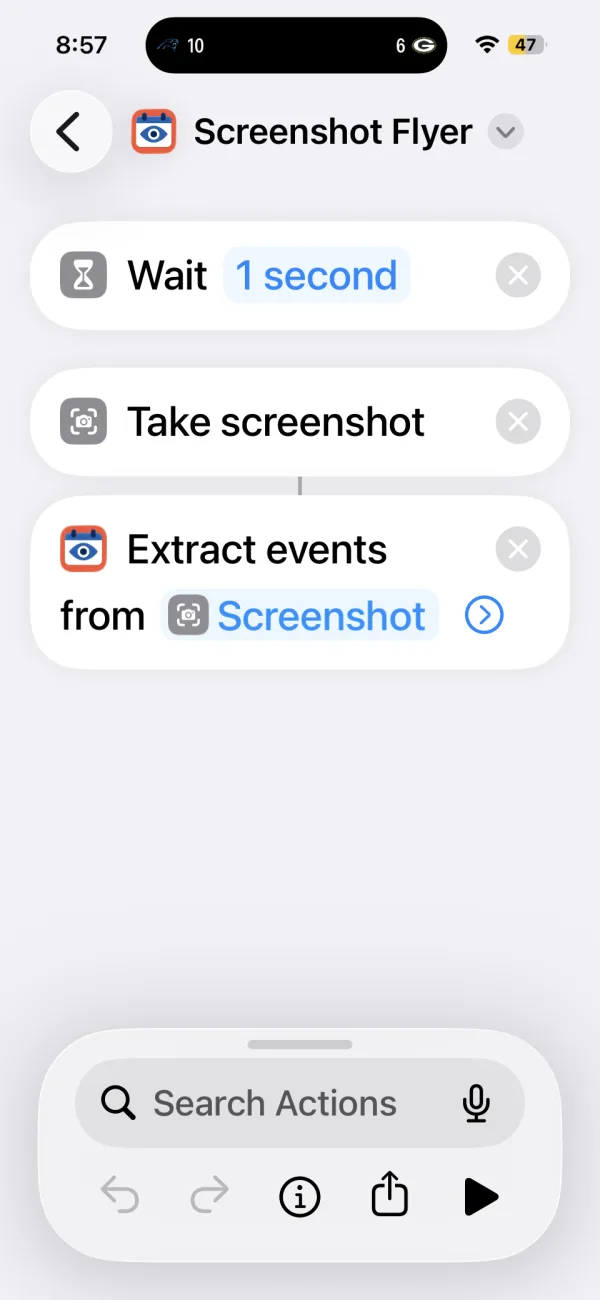
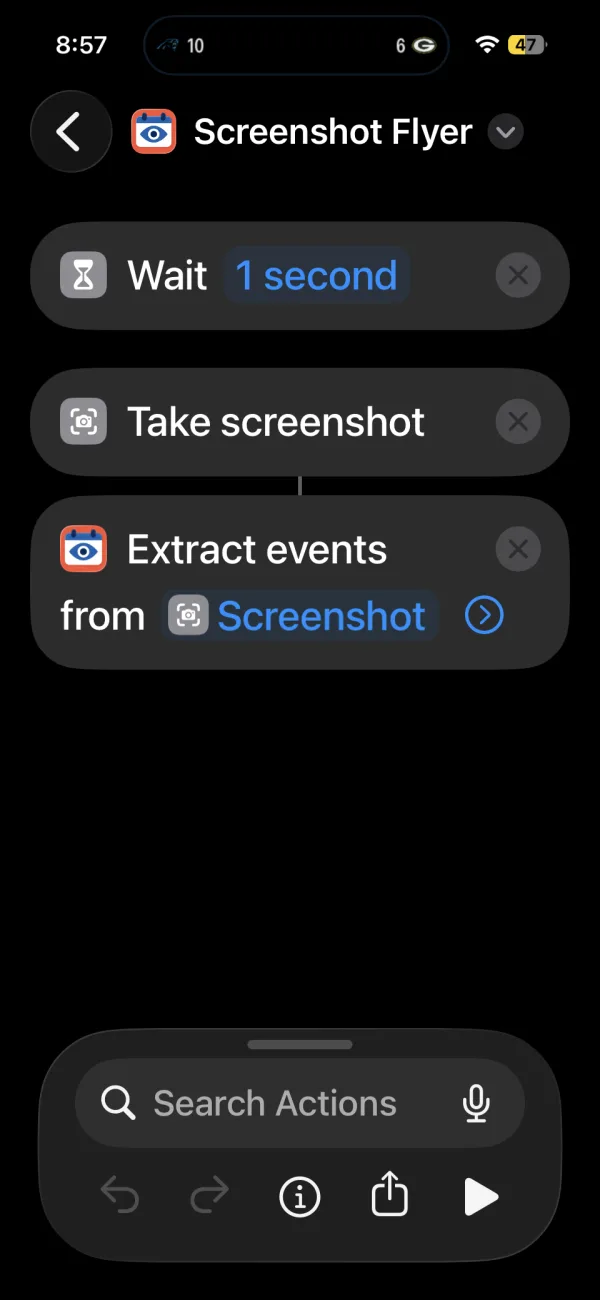
The wait matters. When you tap the shortcut in Control Center, Control Center is still covering the screen. One second gives it time to close, so the screenshot shows the post and not your Control Center buttons.
Step 2: Add it to Control Center
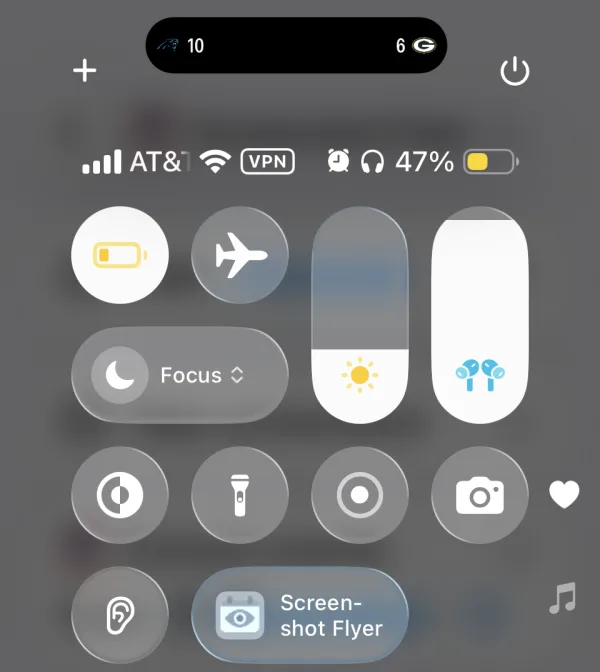
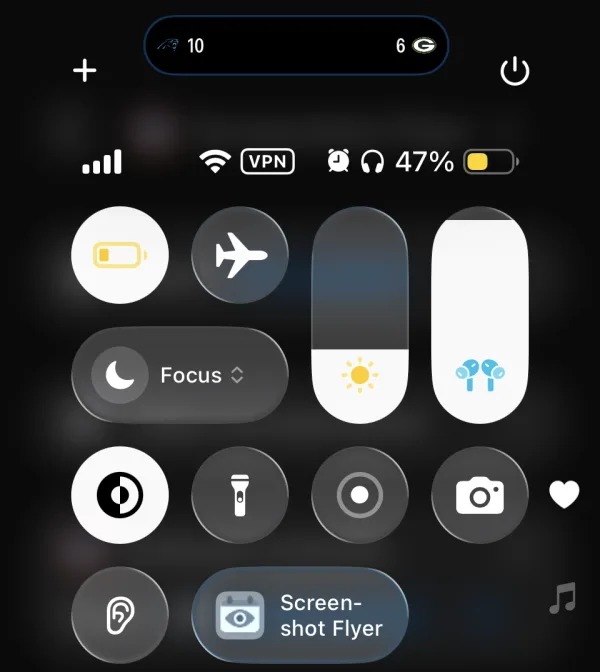
Swipe down from the top-right corner to open Control Center. Tap + in the top-left corner, then Add a Control. Search for “Shortcut,” tap it, and choose the shortcut you just built.
Step 3: Tap it when an event goes by
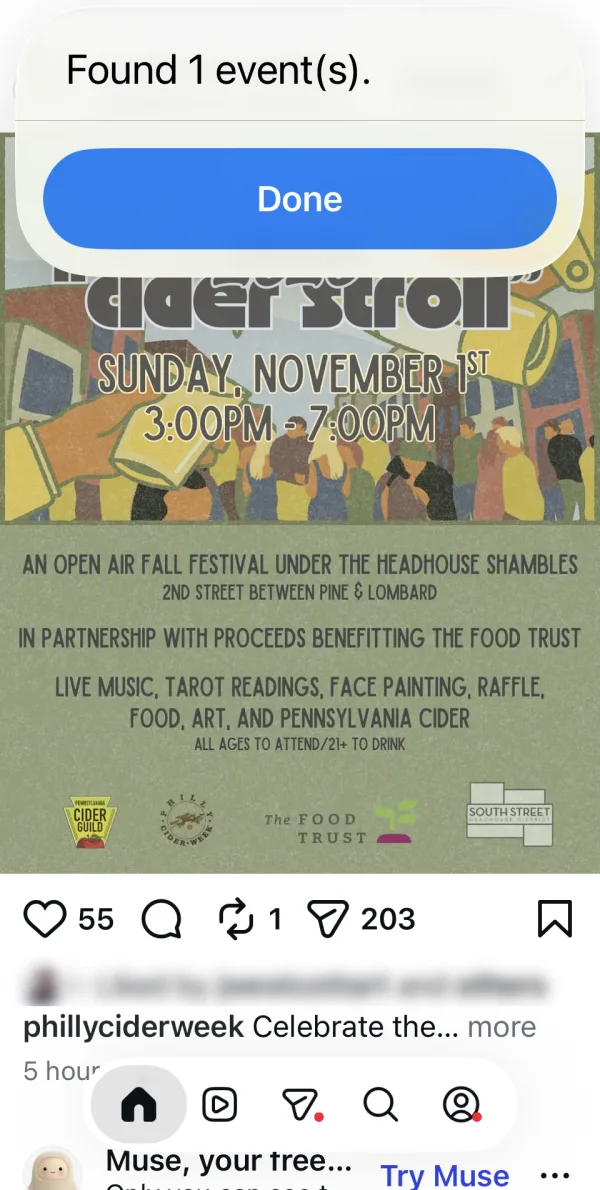
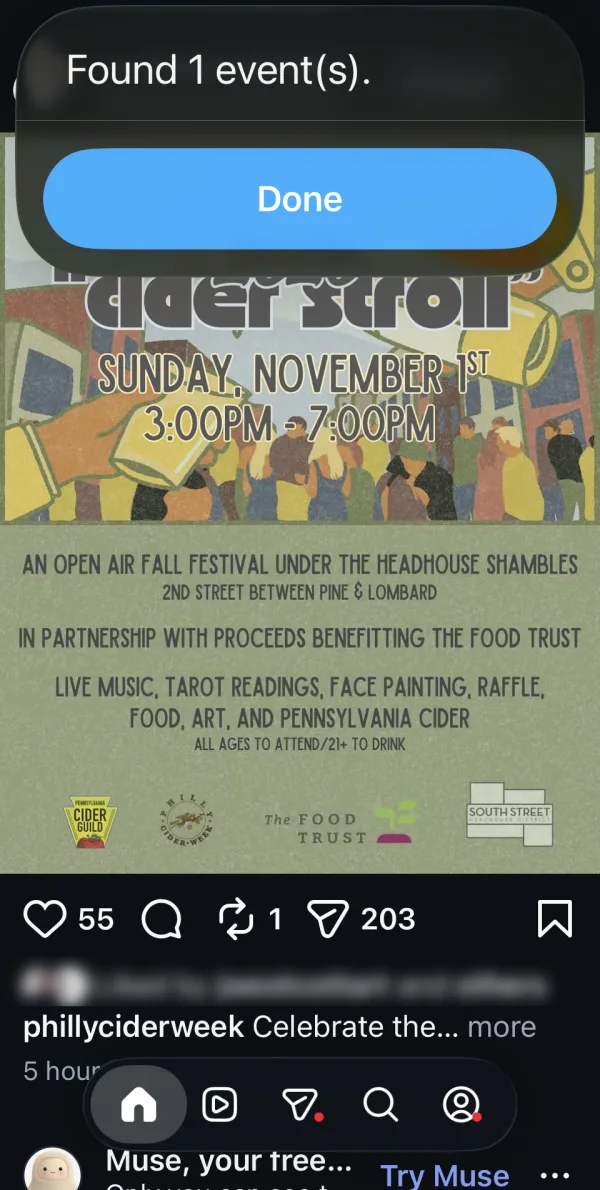
Here’s the Cider Stroll post in Instagram:


Open Control Center and tap Screenshot Flyer. A few seconds later a message drops down over Instagram: “Found 1 event(s).” Tap Done and keep scrolling.
Step 4: Review it in Calendar Vision
The event waits in your Calendar Vision inbox. When you open the app, it shows the screenshot with the event outlined and the details underneath: 2026 “Cider Stroll,” Sunday, November 1st, 3:00 to 7:00 PM, at The Shambles in Philadelphia.
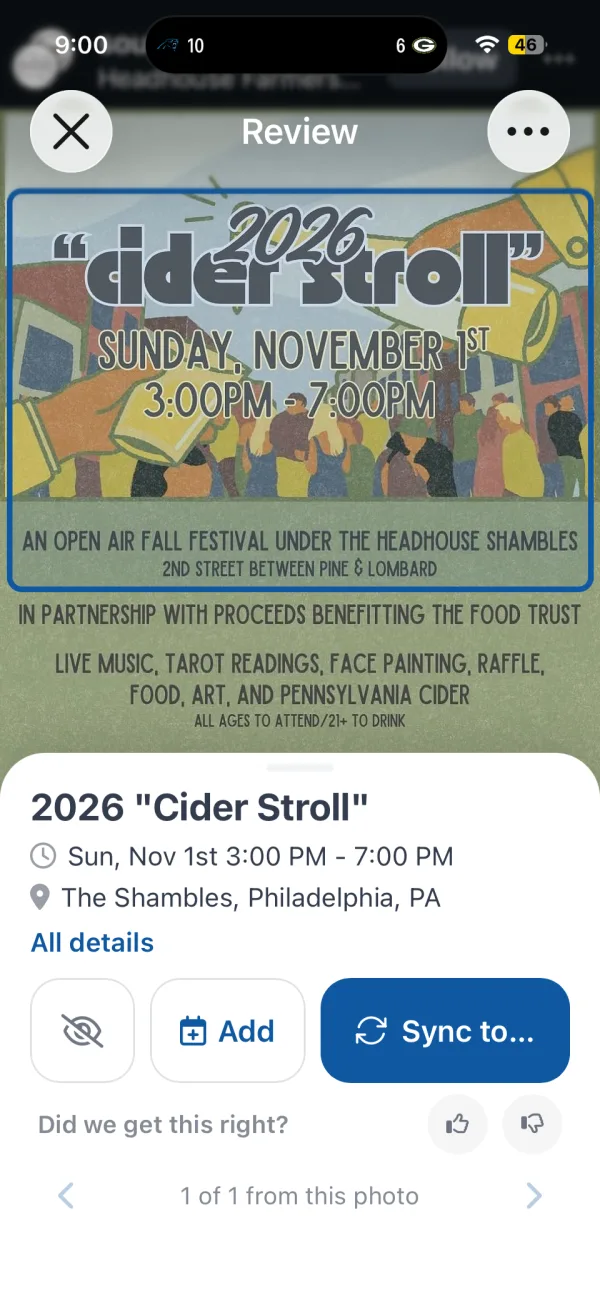
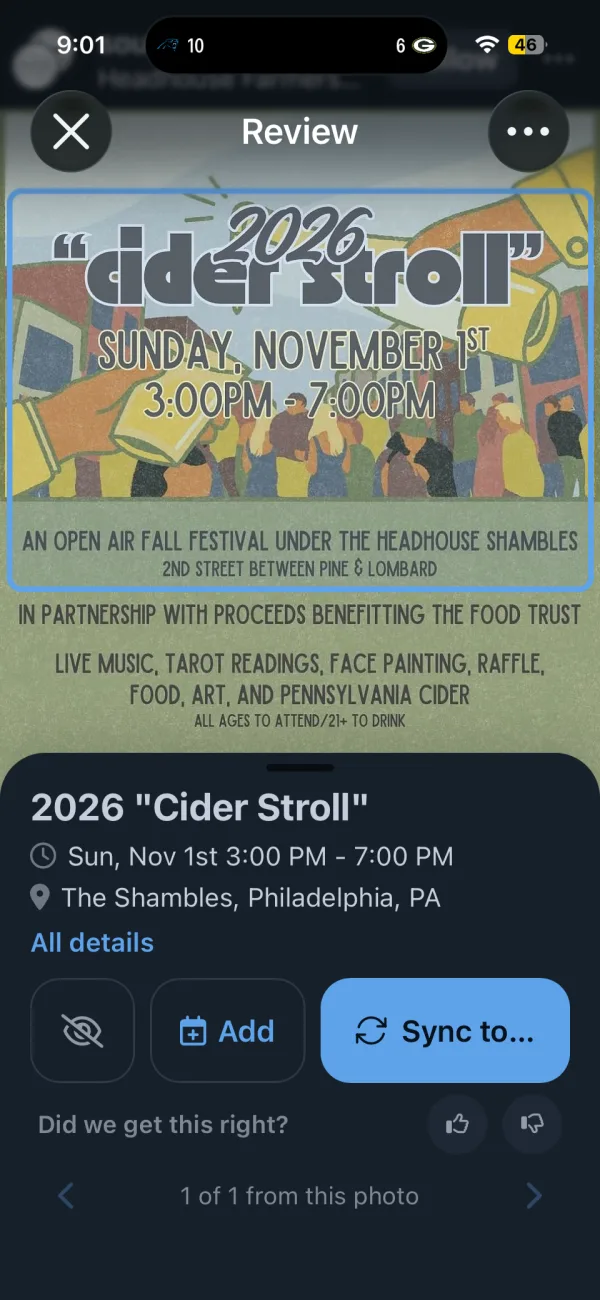
Tap Add to put it on your phone’s calendar, or Sync to to send it to the calendar you sync with Calendar Vision.
Other ways to run it
Control Center is one option. The same shortcut works anywhere iOS lets you run a shortcut:
- Action Button (iPhone 15 Pro and later): Settings > Action Button, swipe to Shortcut, and choose it.
- Back Tap: Settings > Accessibility > Touch > Back Tap, then pick Double Tap or Triple Tap and choose the shortcut.
- Home Screen: in Shortcuts, touch and hold the shortcut, tap Share, then Add to Home Screen.
With the Action Button or Back Tap the screen is already clear, so you can remove the Wait action if you like.
Web pages too
Calendar Vision also has an Extract Events from URL action for event pages. It reads the page the same way the app does when you add an event from a website. And if you’d rather screenshot first and decide later, sharing a screenshot from Instagram to Calendar Vision still works.
Frequently asked questions
- Does the shortcut open Calendar Vision?
- No. It runs in the background and shows how many events it found, so you stay in the app you were using. The events wait in your Calendar Vision inbox until you review them.
- What does "Still processing" mean?
- Calendar Vision usually finishes in a few seconds. If it takes longer than 30 seconds, the shortcut stops waiting and tells you to open the app. The events show up in your inbox when they're ready.
- Why does the shortcut wait one second?
- When you tap the shortcut in Control Center, Control Center is still on screen. The one-second wait lets it close, so the screenshot shows the app behind it.
- Do I need an account?
- Open the Calendar Vision app once before you use the shortcut. It works with a guest account or a signed-in one.
- Which iPhones can run it?
- Any iPhone that runs the Calendar Vision app can run the shortcut from the Shortcuts app. Adding it to Control Center needs iOS 18 or later, and the Action Button is on iPhone 15 Pro and later.
- Is Calendar Vision free?
- You can start free with 3 extractions and no credit card. Calendar Vision Pro removes the limit for $3.99 a year or a one-time $9.99 lifetime purchase.