To turn a photo into a calendar event, share the photo to Calendar Vision (or upload it in the app), check the event it pulls out — title, date, time, location, and repeating schedule — and tap “Add to Calendar.” It works with photos of flyers, posters, mailers, printed schedules, screenshots, and PDFs, on iPhone, Android, and the web.
Your phone can already spot a date in a picture, but that’s only part of an event. As our iOS Photos comparison showed, the built-in option found the time on a flyer but left the title blank and missed that the event repeats every week. Calendar Vision reads the whole flyer the way a person would, so the event is ready to save without retyping anything.
Here’s how to do it, step by step, using a flyer for a weekly comedy night spotted in a shop window.
How do I add an event from a photo on iPhone?
Step 1: Take a photo of the flyer
Snap the flyer with your camera like you would anything else. Get the whole flyer in the frame — you don’t need to crop it or straighten it.

Step 2: Share the photo to Calendar Vision
Open the photo in the Photos app, tap the share button, and choose Calendar Vision from the share sheet. You can also open Calendar Vision directly and upload the photo from your library.

Step 3: Review the event in your Inbox
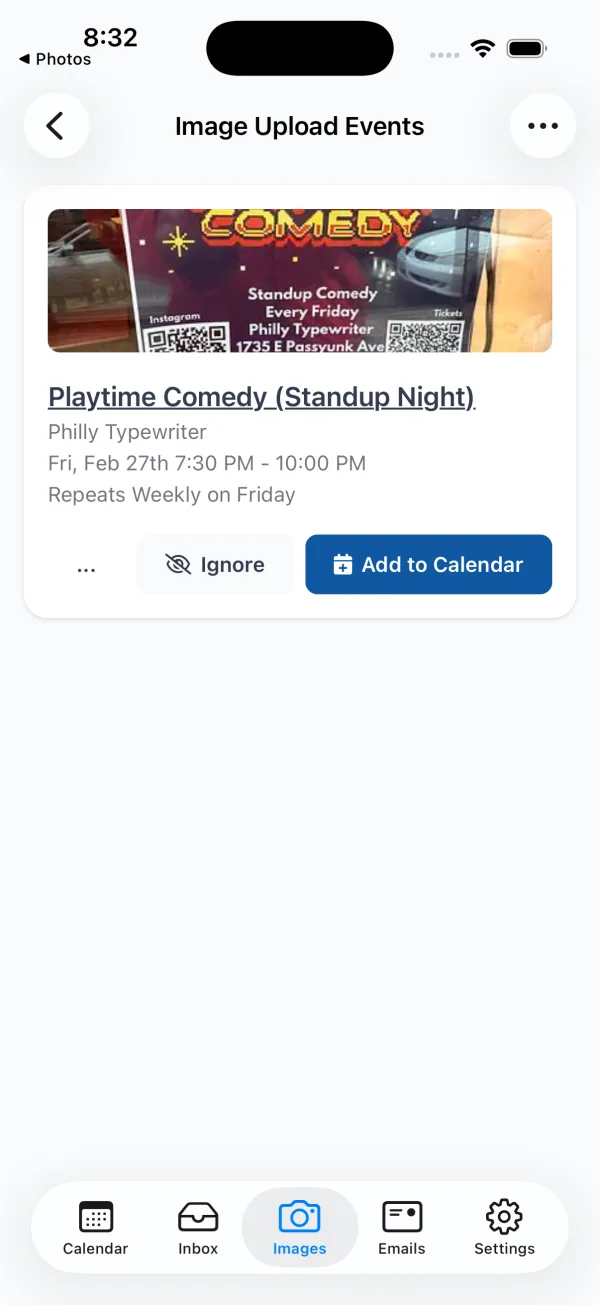
Once Calendar Vision has read the photo, the event shows up in your Inbox. In this case it picked up “Playtime Comedy (Standup Night)” as the title, Philly Typewriter as the location, 7:30 PM as the start time, and — because the flyer says “Every Friday” — a weekly repeat on Fridays. If anything looks off, edit it before you save.
Step 4: Add it to your calendar
Tap “Add to Calendar” and iOS opens a New Event sheet with everything already filled in. One more tap and it’s on your calendar, with the same alerts and travel time as any other event.

How do I add an event from a photo on Android?
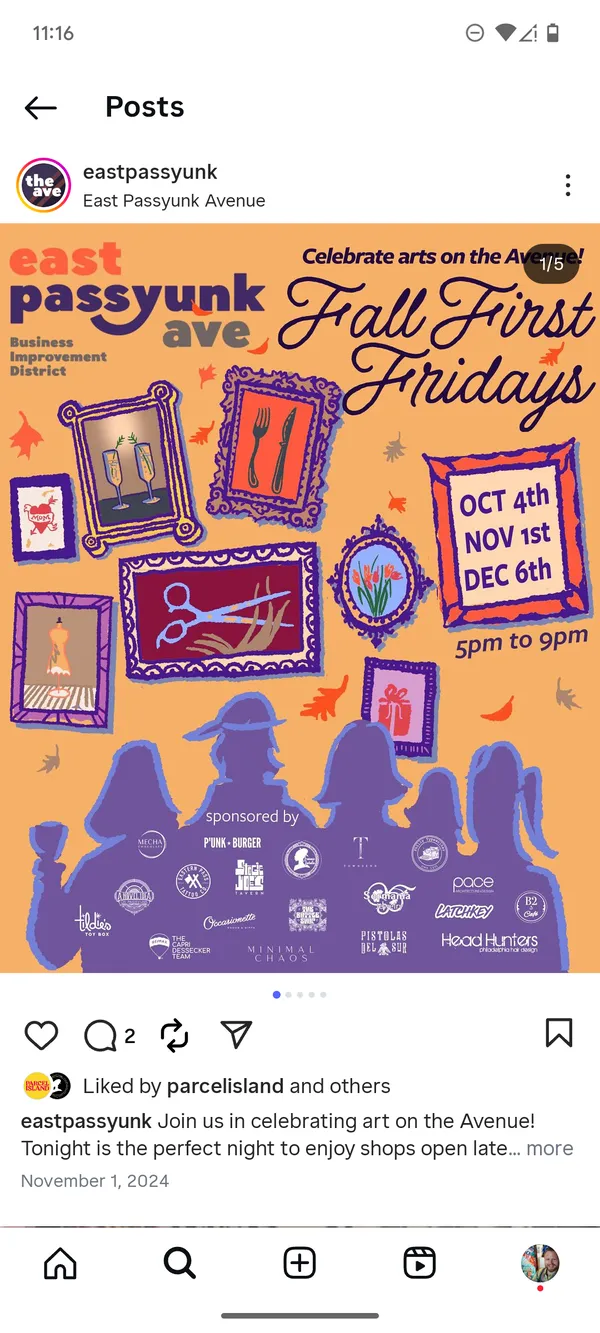
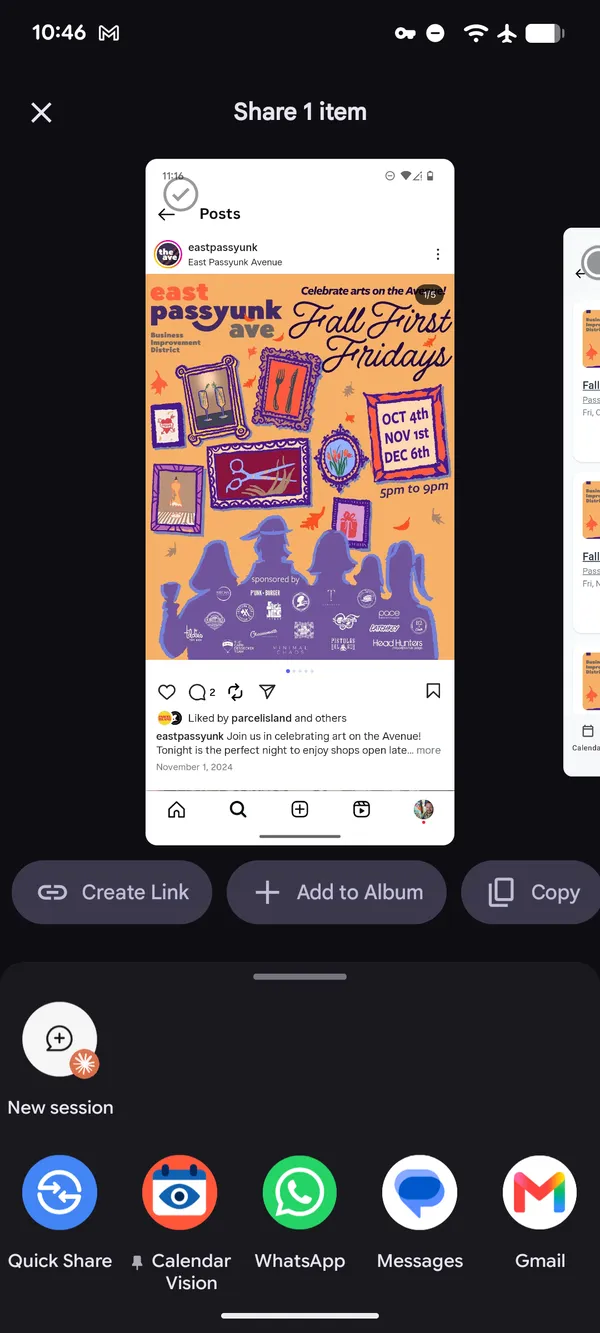
Android works the same way, straight from the share sheet. This time the flyer is an Instagram post for East Passyunk Avenue’s Fall First Fridays — one image that lists three different dates.
Step 1: Take a photo or screenshot
Photograph the flyer, or screenshot it if you found it online. The Instagram buttons and caption around the flyer don’t get in the way.
Step 2: Share it to Calendar Vision
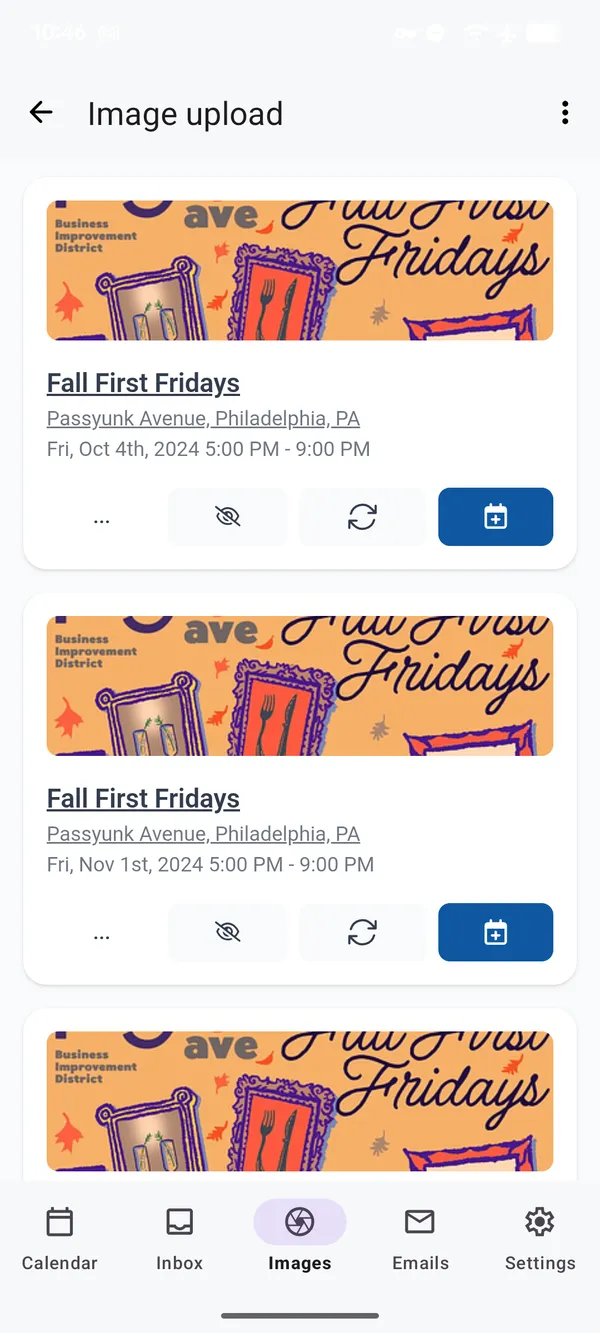
Open the screenshot in Google Photos or your gallery app, tap Share, and choose Calendar Vision. You can also open Calendar Vision, go to Images, and upload it from there.
Step 3: Review each event and add it
Because the flyer lists October 4, November 1, and December 6, Calendar Vision creates a separate event for each date, each with the title, the Passyunk Avenue location, and the 5–9 PM time. Tap the calendar button to add an event to your phone’s calendar, the sync button to put it on your synced calendar, or hide the dates you can’t make.
Can I turn a photo into an event on my computer?
Yes. Sign in to Calendar Vision on the web, go to Images, and upload the photo or PDF. When the event is ready, “Add to Calendar” gives you one-click links for Google Calendar, Outlook, and Yahoo Calendar, plus an .ics file for Apple Calendar or any other calendar app.
What does Calendar Vision pull out of the photo?
Calendar Vision looks for everything a calendar event needs, not just the date:
| Detail | What it looks for |
|---|---|
| Title | The event name, even when it’s set in a big stylized font |
| Date and time | Start and end times, or an all-day event when no time is given |
| Location | The venue name or address, matched to a full address you can open in Maps |
| Repeating schedule | Patterns like “every Friday,” “daily,” or “first and third Thursday,” including an end date |
| Online link | Zoom, Google Meet, or Microsoft Teams links for virtual events |
| Time zone | A time zone printed on the flyer, otherwise your own |
| Ticket sales | Presales, on-sale dates, and registration openings, flagged separately from the event itself |
What kinds of photos work?
- Flyers and posters from shop windows, telephone poles, and community boards.
- Mailers and postcards for open houses, grand openings, and fundraisers.
- Printed calendars and schedules that list several dates. Each date becomes its own event, so a season schedule turns into a full set of events at once.
- Screenshots of Instagram stories, Facebook posts, and group chats. See how to turn Instagram screenshots into calendar events.
- PDFs like newsletters and event programs. Upload the whole file; there’s no need to convert it to an image first.
You can upload up to 10 images or PDFs at a time. And if the event arrived by email instead, you can forward the email to Calendar Vision rather than taking a screenshot.
How do I get the best results from a photo?
- Fit the whole flyer in the frame. The date is often in a corner or along the bottom edge.
- Keep it sharp. Hold steady and let the camera focus; small print needs to be readable.
- Watch for glare. Flyers behind glass or on glossy paper can wash out text, so tilt the phone slightly if you see a bright reflection.
- Skim before you save. Every event waits in your Inbox until you add it, so it takes a second to confirm the details.
Should I add events one at a time or keep them synced?
Calendar Vision gives you two ways to get events onto your calendar:
- Add saves a single event straight to your phone’s calendar, or to Google, Outlook, or Yahoo Calendar on the web. It’s best for the occasional flyer.
- Sync puts the event on your Synced Events calendar, which you subscribe to once in Google Calendar, Apple Calendar, or Outlook. Every event you sync after that shows up automatically. It’s best if you add events often.
Frequently asked questions
- Can my phone turn a photo into a calendar event without an app?
- Partly. On iPhone, the Photos app can spot a date and time in a picture and offer to create an event, but in our test it left the title blank and missed that the event repeats weekly. Calendar Vision fills in the title, location, and repeating schedule too.
- What file types can I upload?
- Calendar Vision accepts JPEG, PNG, GIF, and PDF files. You can upload up to 10 at a time.
- What happens if a flyer lists several dates?
- A repeating pattern like "every Friday" becomes one recurring event. A schedule that lists specific dates becomes a separate event for each date.
- Which calendars does Calendar Vision work with?
- You can add events one at a time to your phone's calendar, or to Google, Outlook, or Yahoo Calendar on the web. You can also subscribe to your Calendar Vision feed in Google Calendar, Apple Calendar, or Outlook so new events sync automatically.
- Is Calendar Vision free?
- You can start free with 10 events per month and no credit card. Calendar Vision Pro removes the limit for $3.99 a month or $39.99 a year.