To add a school calendar to your phone, upload the district’s calendar PDF to Calendar Vision. It reads every day off, break and milestone and turns each into an all-day event, with breaks like “Winter Recess, December 23–31” as a single event. Sync the ones you want and they show up in Google Calendar, Apple Calendar or Outlook.
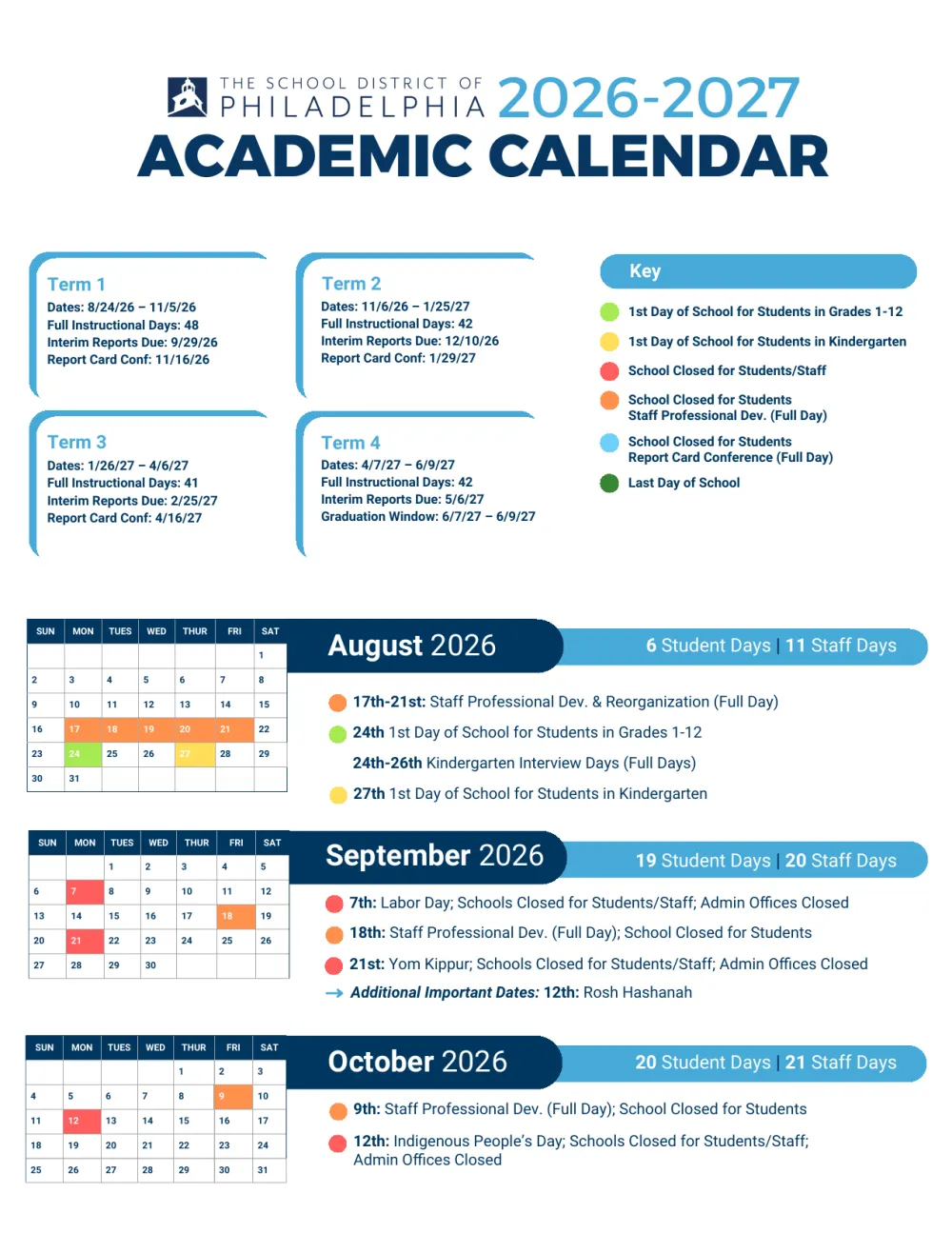
Most schools publish the year as a one-page grid of colored squares with a legend, or a four-page PDF with a key at the top. It’s easy to read and tedious to copy. A typical year has 40 to 50 dates worth knowing, and typing them in takes an evening you’ll repeat every August.
Here’s how it works with the School District of Philadelphia’s official 2026–27 academic calendar.
Does your school already offer a calendar feed?
Check first. Some districts publish a Google Calendar or iCal link next to the PDF, often labeled “Subscribe” or “Add to Google Calendar.” If yours does, subscribe to it and skip the rest of this guide; the district will keep it up to date for you.
Many schools only offer the PDF, though, and so do most private schools, preschools, camps and after-school programs. The same goes for the calendar handed out at back-to-school night. That’s where Calendar Vision helps.
How do I add a school calendar PDF to my phone?
Step 1: Download the calendar
Find the academic calendar on your district or school website and download the PDF. Philadelphia’s is on the district’s calendar page under “Download the 26-27 Calendar.” It has four pages: the terms and a color key, the months from August through July with every closure listed, and a one-page overview.
Step 2: Upload it to Calendar Vision
Open Upload Images, choose the PDF, and tap Upload. If your school’s calendar is a photo or an image instead, such as a printout from the fridge or a picture from the class group chat, share it to Calendar Vision the way you would any other flyer. You can upload up to 10 images at a time, so screenshots of a multi-page calendar can go in together.
Step 3: Check the list of events
A whole school year takes a few minutes to read. From the Philadelphia PDF, Calendar Vision created about 50 all-day events: every day schools are closed, the first day for grades 1–12 and the first day for kindergarten, report card conferences, interim report due dates, testing windows, the graduation window and the last day of school. Dates that have already passed go to your ignored events, so the list starts with what’s coming up.
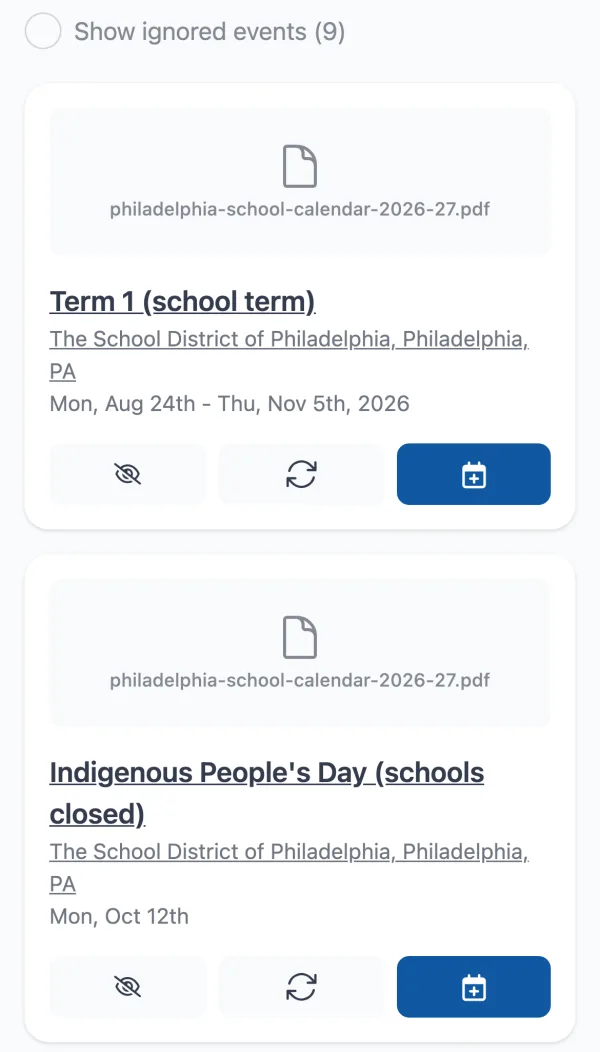
Breaks become one event that spans the whole break rather than a separate event for each day. Winter Recess runs from Wednesday, December 23 to Thursday, December 31, and Thanksgiving Recess covers November 26 and 27.
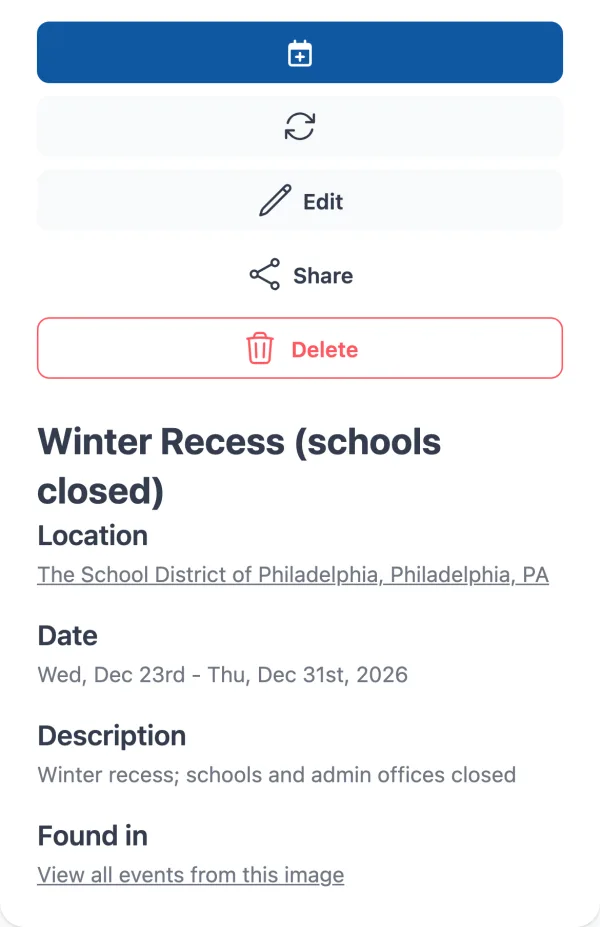
Step 4: Clean it up
You probably don’t need all 50. Tap the ignore button on the ones that don’t affect your family, such as the Keystone testing window if your kids are in elementary school.
Calendar Vision sometimes fills in the district office as the location for every event. To use your child’s school instead, tap Bulk Edit Events and enter a new location for all events. It updates every event from that upload at once.
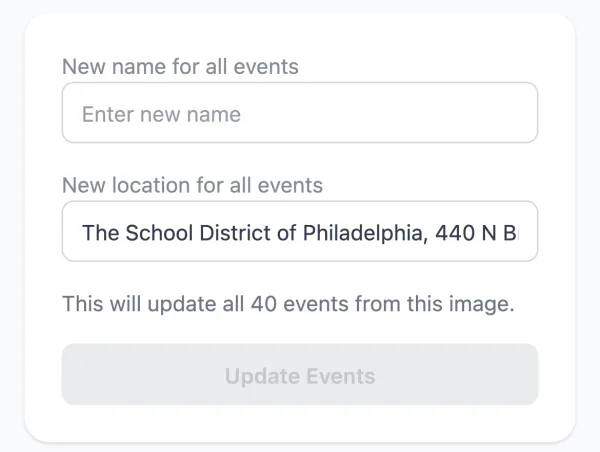
Step 5: Get the events onto your phone’s calendar
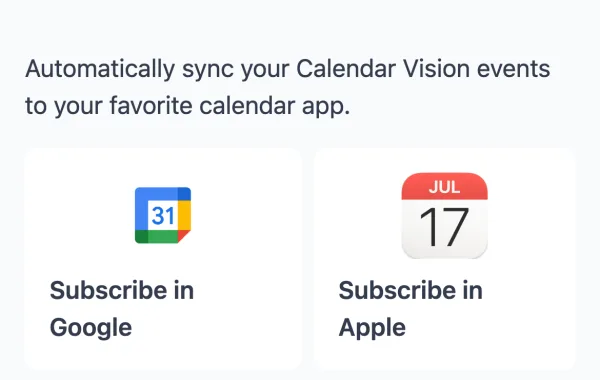
For a few dates, tap “Add to Calendar” on each one. For a whole school year, sync instead. Tap Sync on each event you want, then subscribe to your Calendar Vision calendar once in Google Calendar, Apple Calendar or Outlook. Synced events show up on your phone alongside everything else, and anything you sync later appears automatically.
What does Calendar Vision find in a school calendar?
These are the events it created from the Philadelphia calendar:
| On the calendar | Calendar Vision creates |
|---|---|
| “7th: Labor Day; Schools Closed for Students/Staff” | An all-day event on September 7 |
| “23rd-31st: Winter Recess” | One all-day event from December 23 to 31 |
| “24th 1st Day of School for Students in Grades 1-12” and “27th 1st Day of School for Students in Kindergarten” | A separate event for each, so you can keep the one for your child’s grade |
| “16th: Report Card Conference (Full Day); School Closed for Students” | An all-day event on November 16 |
| “Interim Reports Due: 9/29/26” in the term boxes at the top | An event for each interim report date, even though they aren’t in the monthly lists |
| “26th-30th: PSSA Testing Window” | One event spanning the testing week |
| “Additional Important Dates: 8th: Diwali” | An event for the observance, which you can ignore if you don’t need it |
How accurate is it?
Very accurate on dates, but check it before you trust it completely. Across several runs on this calendar, every event Calendar Vision created had the right date, and every multi-day break started and ended on the right day. But the number of events varied from 49 to 54, and one run skipped Yom Kippur. Take a minute to compare the list with the PDF’s closures, especially the ones you’ll plan around.
How do I get the best results?
- Use the latest version. Districts revise calendars during the year. Philadelphia amended its 2026–27 calendar in March 2026, after it was first approved. Download the PDF again if your school announces a change.
- Upload the PDF rather than a photo of it. A PDF keeps the small print sharp, and the small print is where conference days and observances tend to be.
- Watch for duplicates when you re-upload. If you add a revised calendar, Calendar Vision marks events that look like ones already in your calendar, so you can skip them.
- Keep the events that matter to your family. A calendar full of testing windows and staff days you don’t need is easy to start ignoring. Sync the days off and the dates you have to act on.
What else can I add the same way?
Anything that lists dates works: a preschool newsletter, a camp schedule, a PTA flyer, or a weekly class or club flyer, which becomes one repeating event. If the school emails the schedule, forward the email instead.
Frequently asked questions
- Can I add a school calendar PDF to my iPhone or Android calendar?
- Yes. Upload the PDF to Calendar Vision and it creates an all-day event for each day off, break, and milestone. Sync the ones you want and subscribe once in Google Calendar, Apple Calendar or Outlook to see them on your phone.
- Does it handle multi-day breaks?
- Yes. A break like "23rd-31st: Winter Recess" becomes one all-day event from December 23 to 31 instead of nine separate events.
- My school has a Google Calendar link. Do I need this?
- No. If your district publishes a calendar feed, subscribe to it directly so the district keeps it up to date. Calendar Vision is for schools and programs that only publish a PDF or an image.
- Can I set every event's location to my child's school?
- Yes. Tap Bulk Edit Events on the upload and enter a new location for all events. It updates every event from that calendar at once.
- What if the school changes the calendar?
- Download the revised PDF and upload it again. Calendar Vision marks events that look like ones already in your calendar, so you only add what changed.